Smart Remake
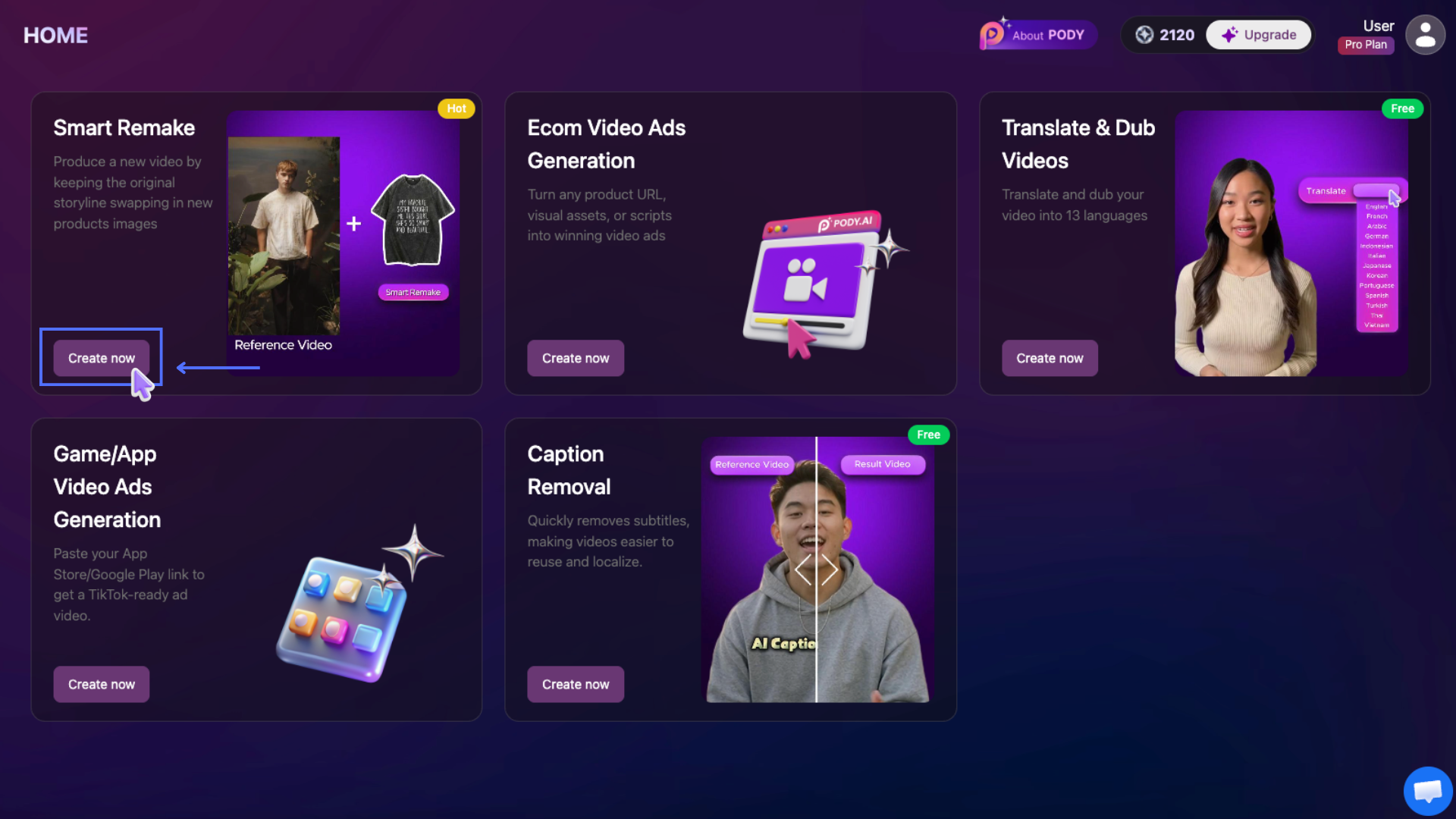
Smart Remake allows you to recreate high-performing or viral videos by keeping the original storyline while automatically replacing products or creative elements using AI.
Instead of creating new concepts from scratch, Smart Remake helps you reuse proven video structures to produce new advertising creatives faster, reduce testing time, and scale winning campaigns efficiently. Users can generate videos directly within Pody.ai or obtain ready-to-use prompts to create videos on other AI video platforms.
To get started, log in to your Pody.ai account at https://app.pody.ai/login and access the Smart Remake feature directly from the dashboard. Or access the feature directly via: https://app.pody.ai/creatives/smart-remake
Smart Remake Guidelines
Version: 1.1
Release Date: 06.05.2026
Website: https://app.pody.ai/
1. Remake Viral Video
Step 1: Upload Reference Video & Product Image
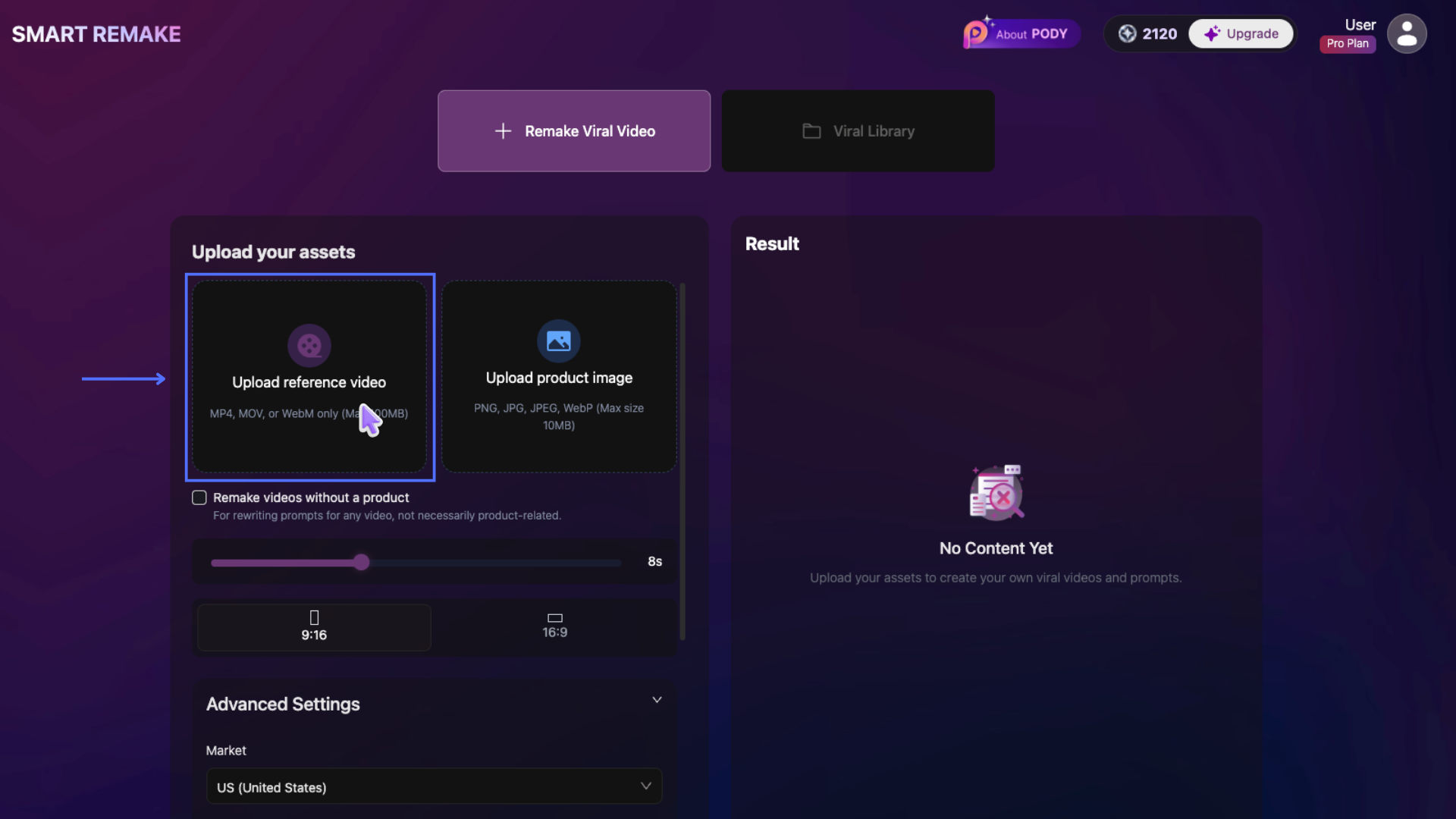
Click Upload reference video to open the file selection dialog and choose a reference video from your computer.
- Supported formats: MP4, MOV, WebM
- Maximum file size: 100MB
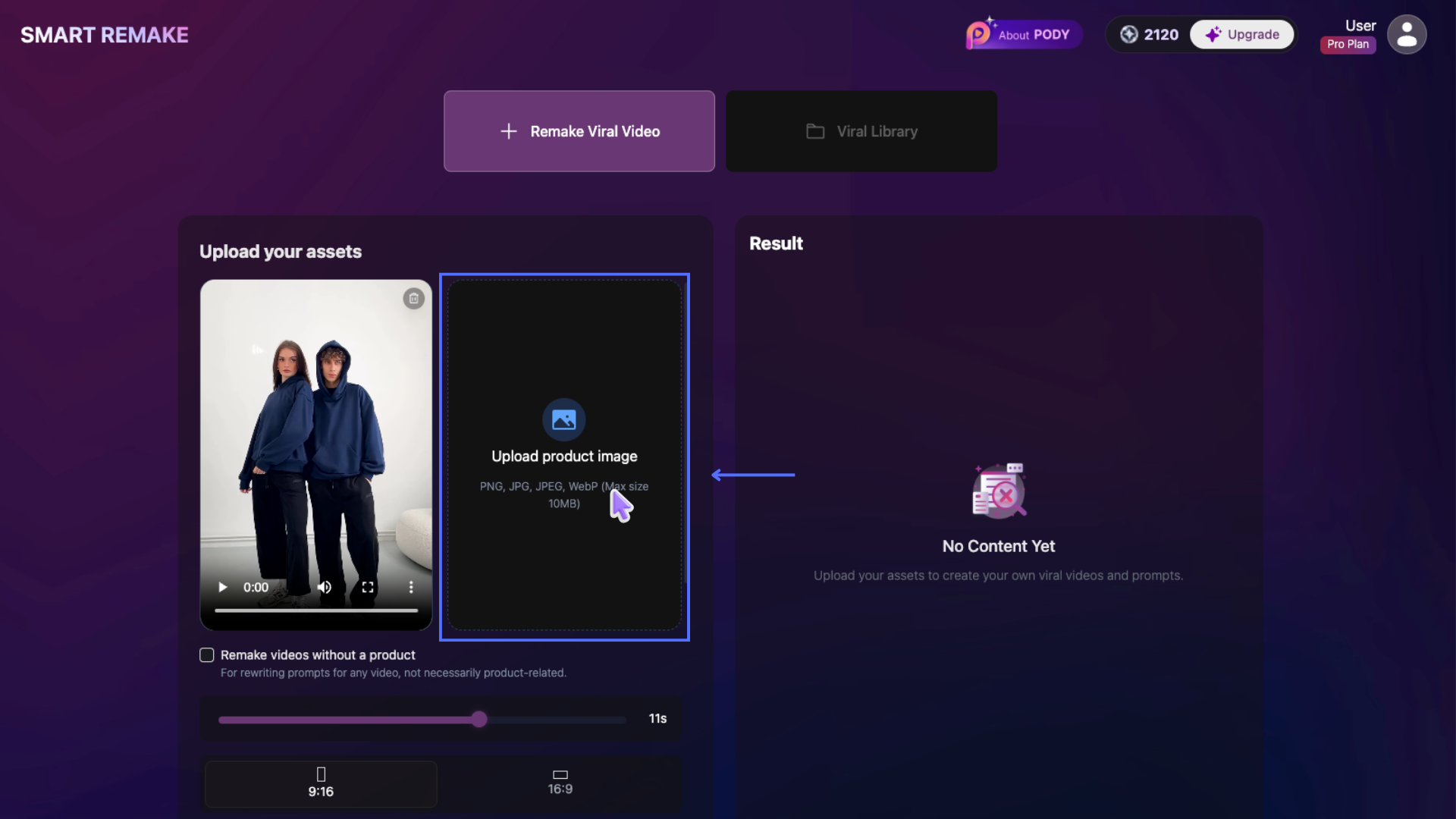
Click Upload product image to upload your product image from your computer.
- Supported formats: PNG, JPG, JPEG, WebP
- Maximum file size: 10MB
After selecting your file, click Open to begin uploading.
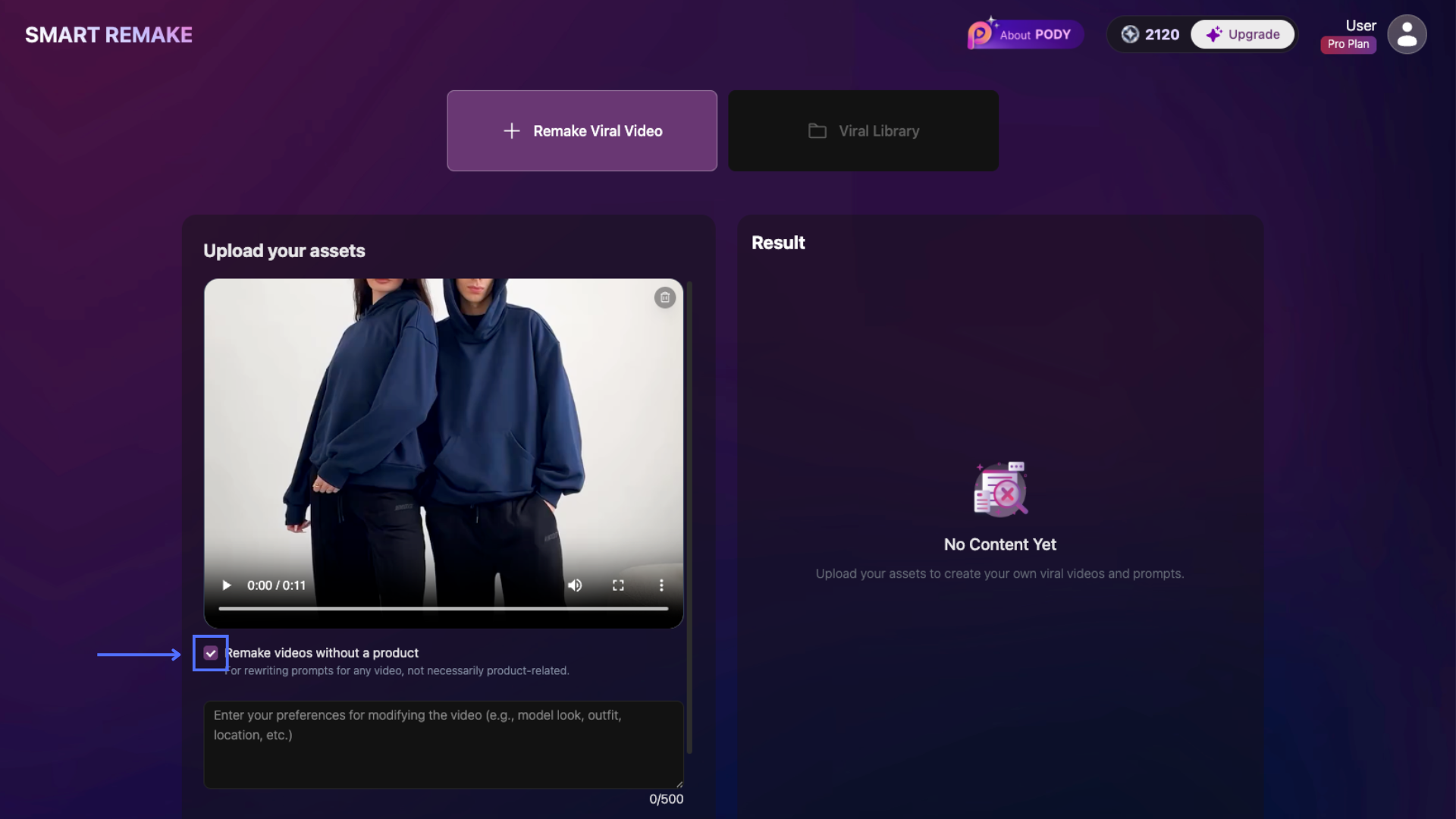
Enable Remake videos without a product if you want to recreate viral or high-performing videos without uploading product assets. This is useful for remaking trending TikTok/Reels content, viral hooks, storytelling formats, or growing content-focused channels.
Step 2: Select Duration & Aspect Ratio
Provide the necessary inputs to customize your video:
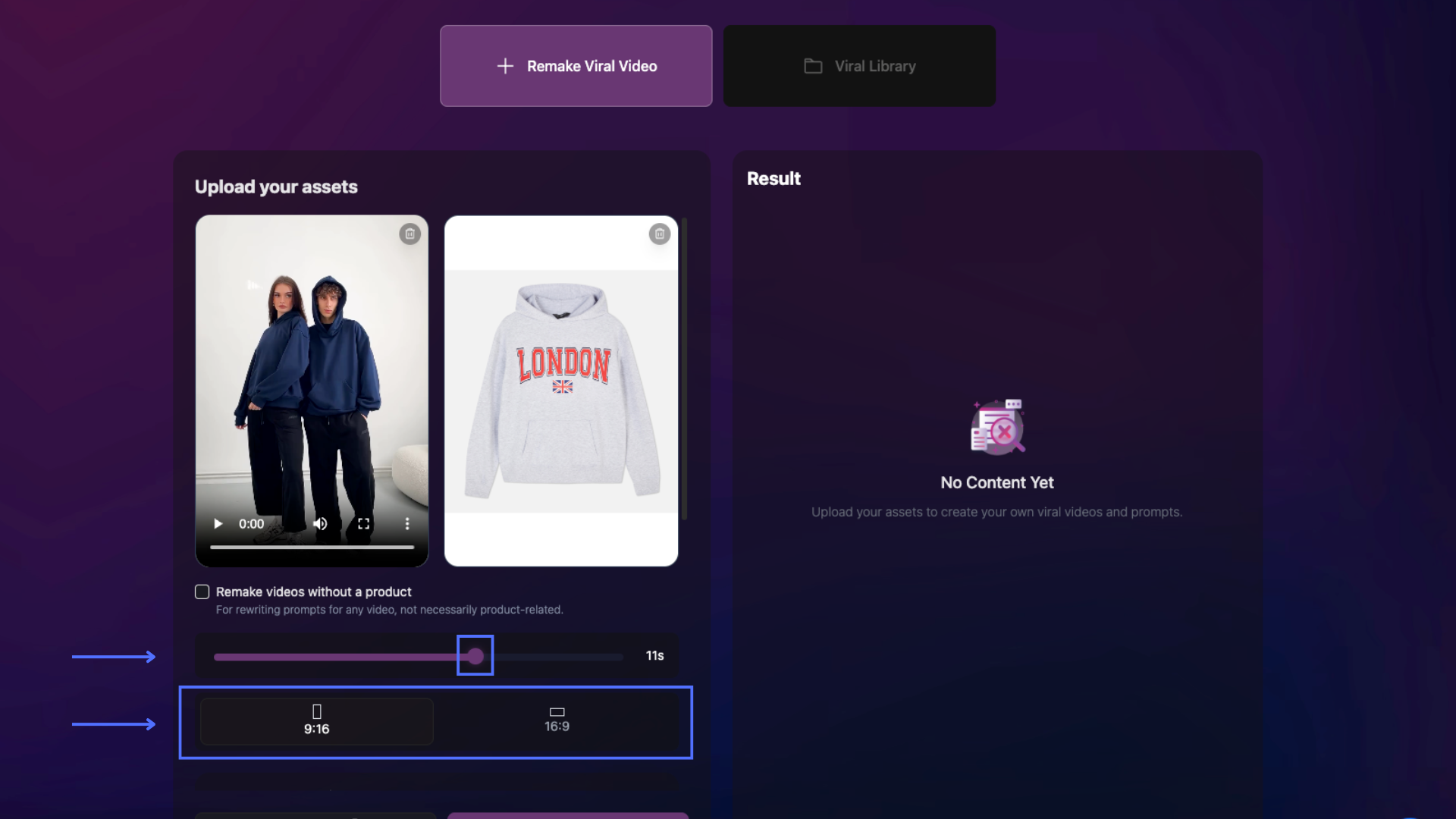
- Video Duration: Drag the round handle on the slider to choose the output video length. Duration can be set from 4 seconds to 11 seconds.
- Aspect Ratio: Click the ratio icon to select your preferred format. The selected ratio will appear highlighted.
- 9:16 — Portrait: TikTok, Instagram Reels, YouTube Shorts
- 16:9 — Landscape: YouTube, Facebook, web advertising
Step 3: Configure Advanced Settings
Expand Advanced Settings to customize your video:
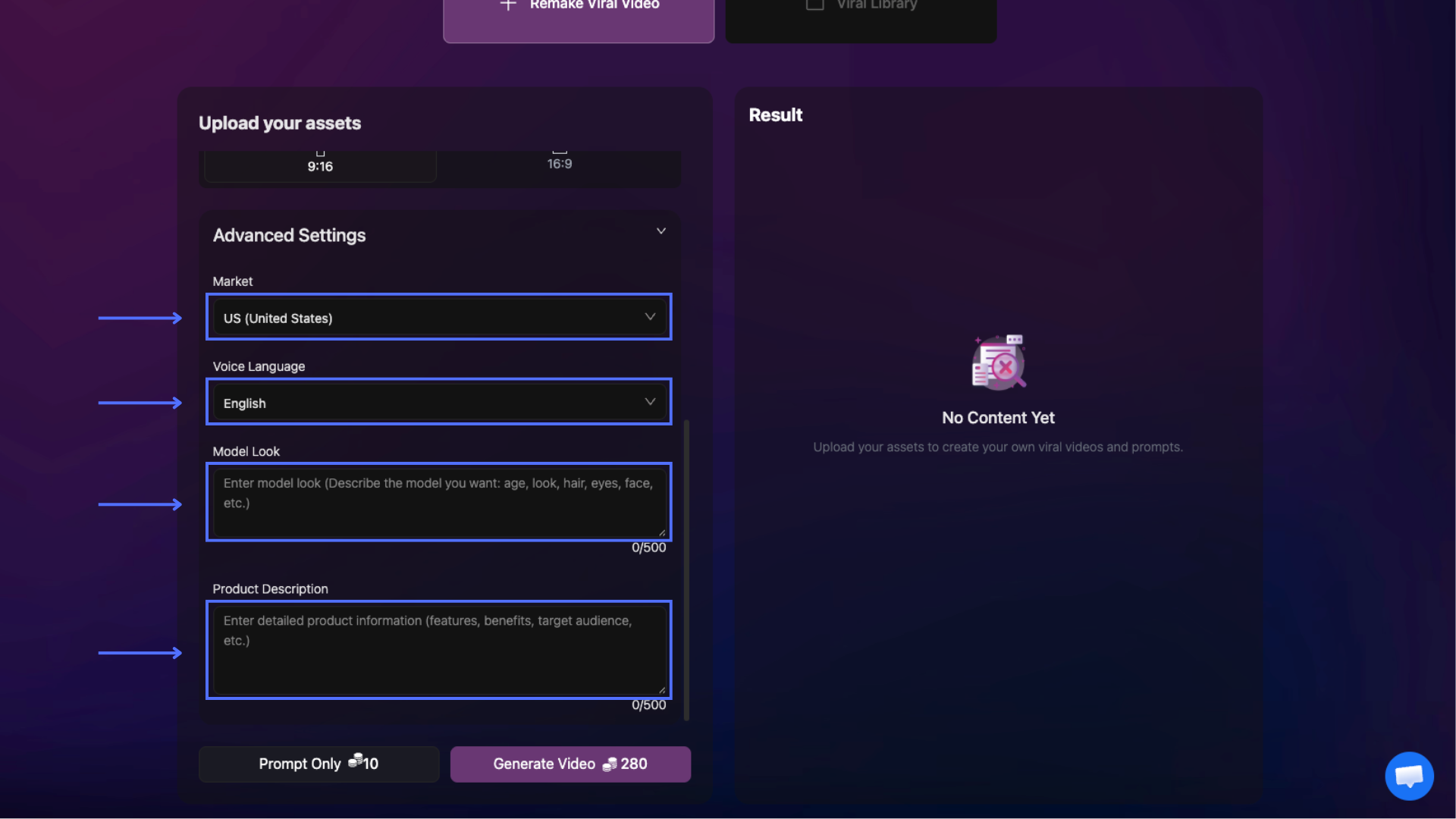
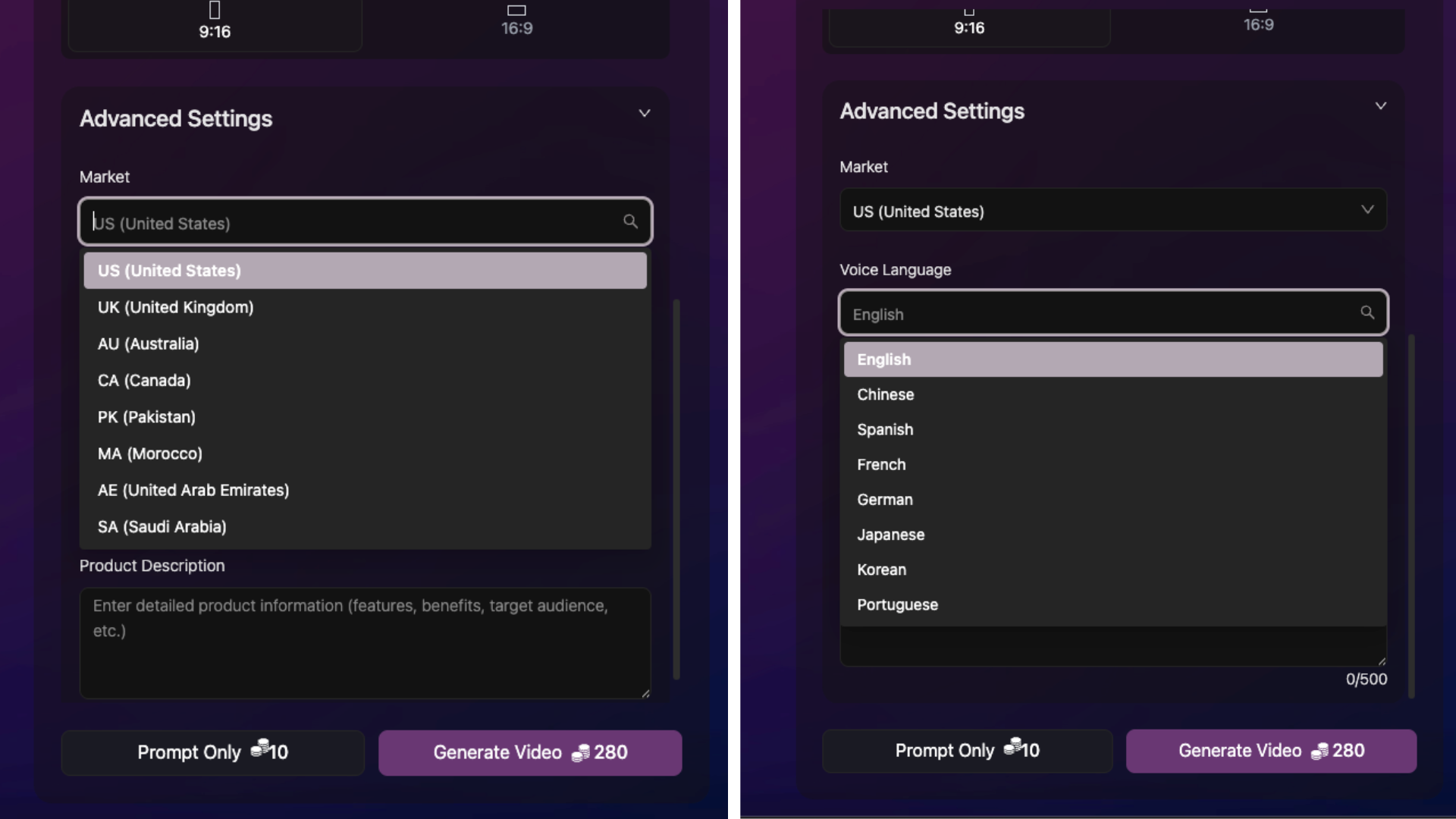
- Market: Choose your target country. Default is US (United States). Change this if you sell in other regions (e.g., US, UK, etc.).
- Voice Language: Select the language for voiceover. Default is English. Select the language your target audience speaks.
- Model Look: Describe the appearance of the AI model in the video (age, gender, hair color, style, etc.). Max 500 characters.
- Product Description: Provide details about your product (features, benefits, target audience, etc.)
These inputs help the AI generate more relevant and high-quality outputs.
Step 4: Generate Prompt or Video
Once all settings are completed, choose one of the following options at the bottom of the page:
-
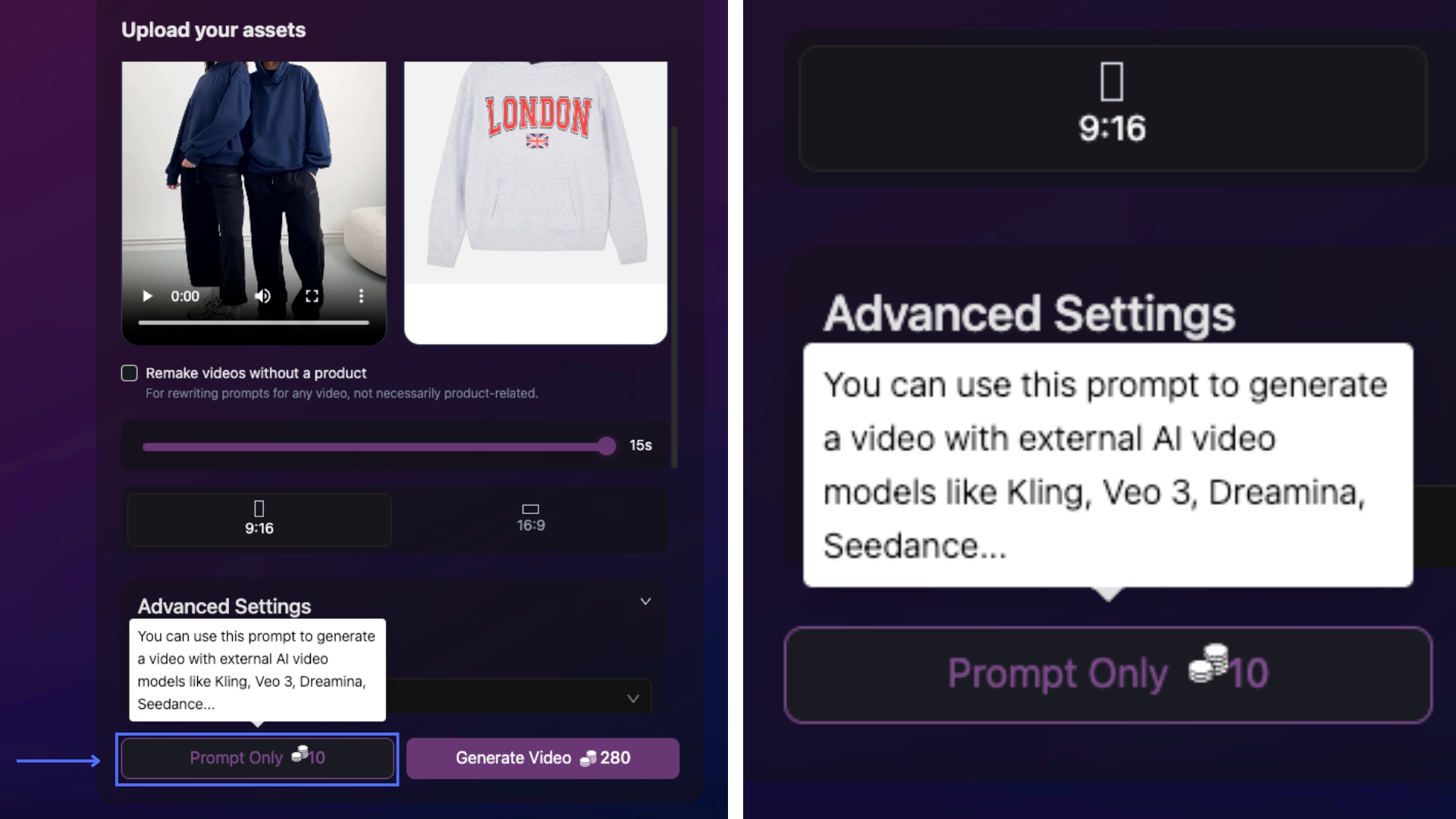
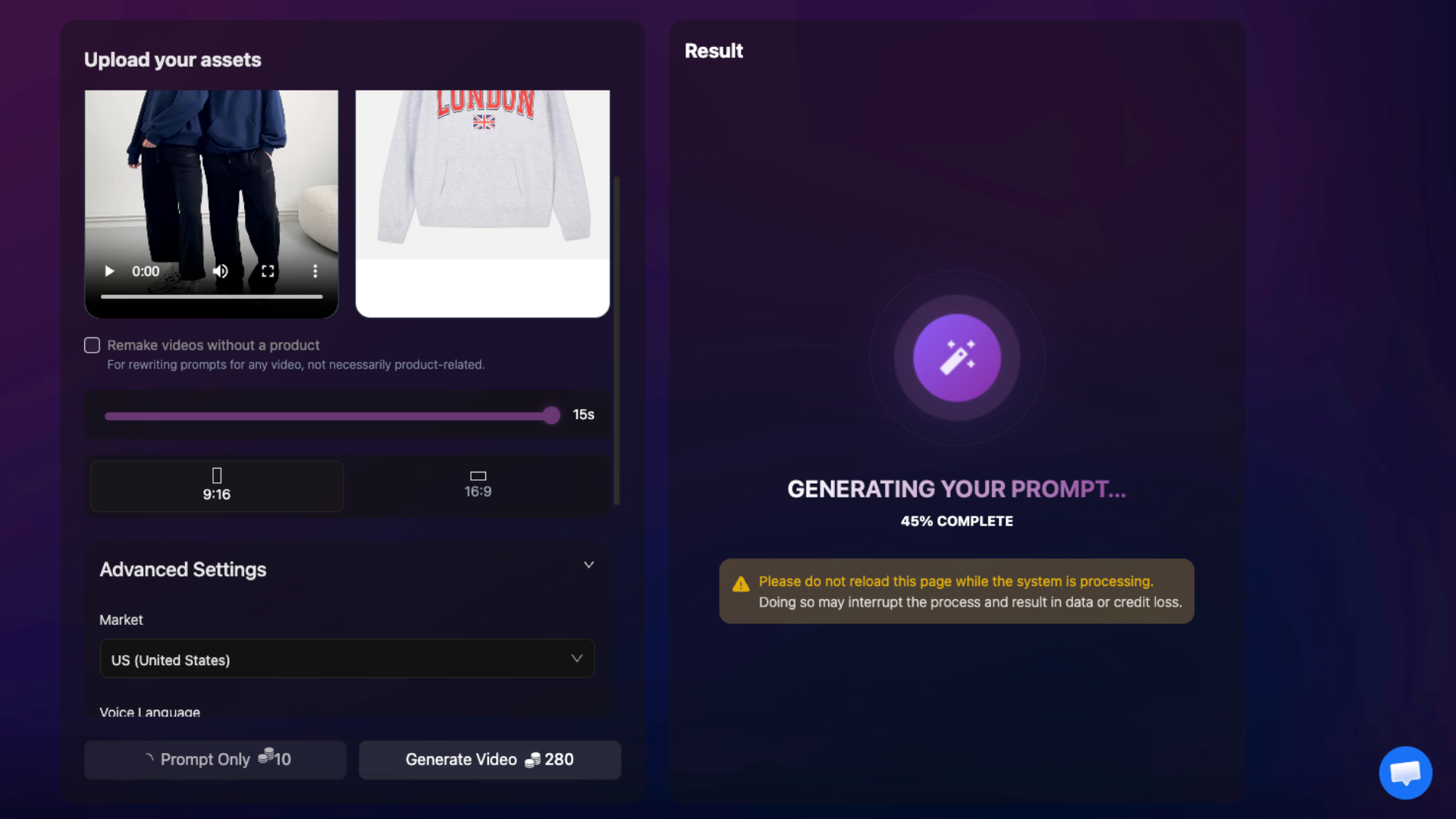
Prompt Only (10 credits): Generate a script/content prompt without creating the full video. This option is useful for previewing ideas, refining concepts, and saving credits before generating the final video.
The generated prompt can also be copied and used in other AI video platforms such as Kling, Veo3, Hailuo, Wan, and more.
Click Prompt Only to generate the prompt.
-
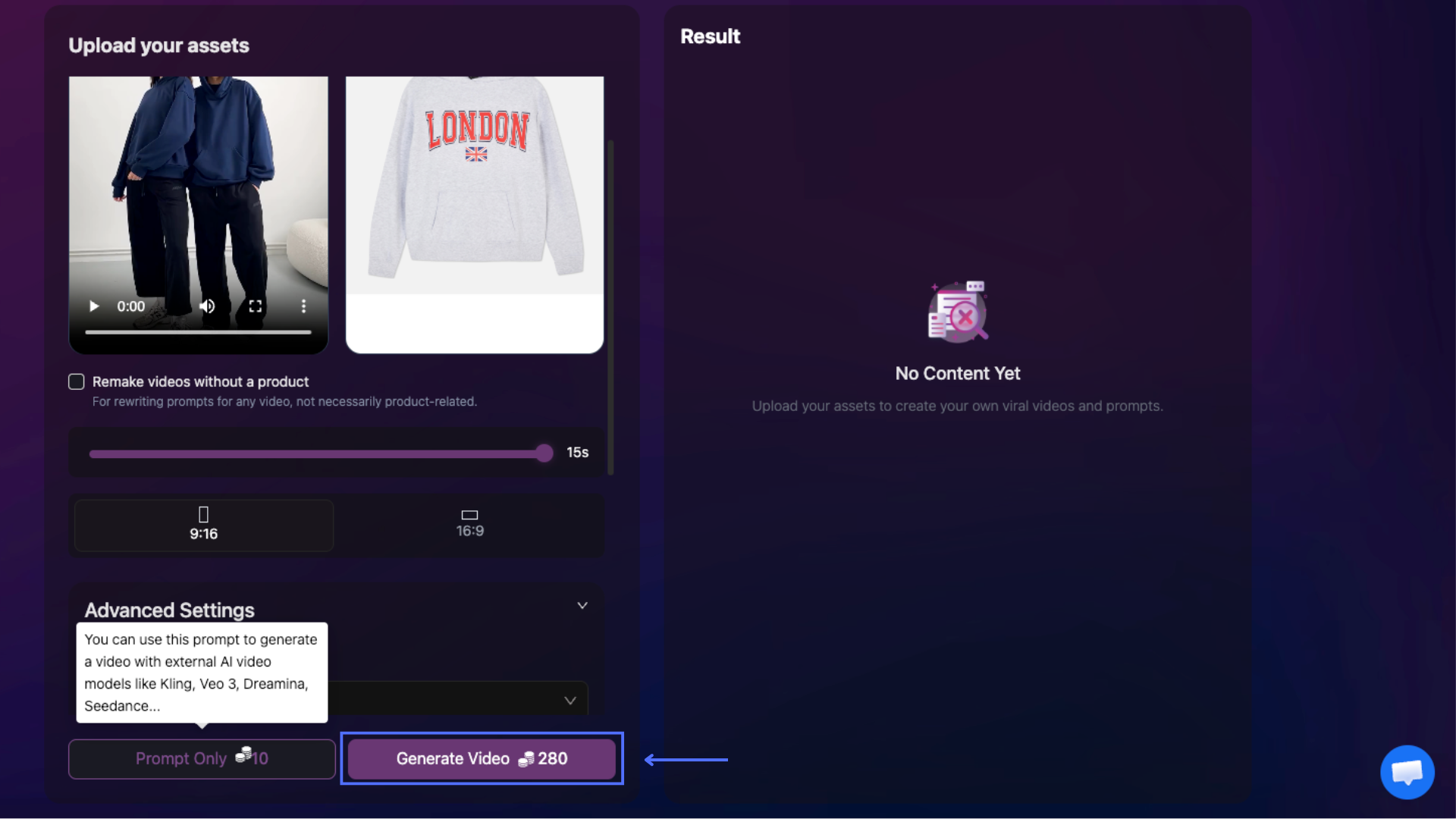
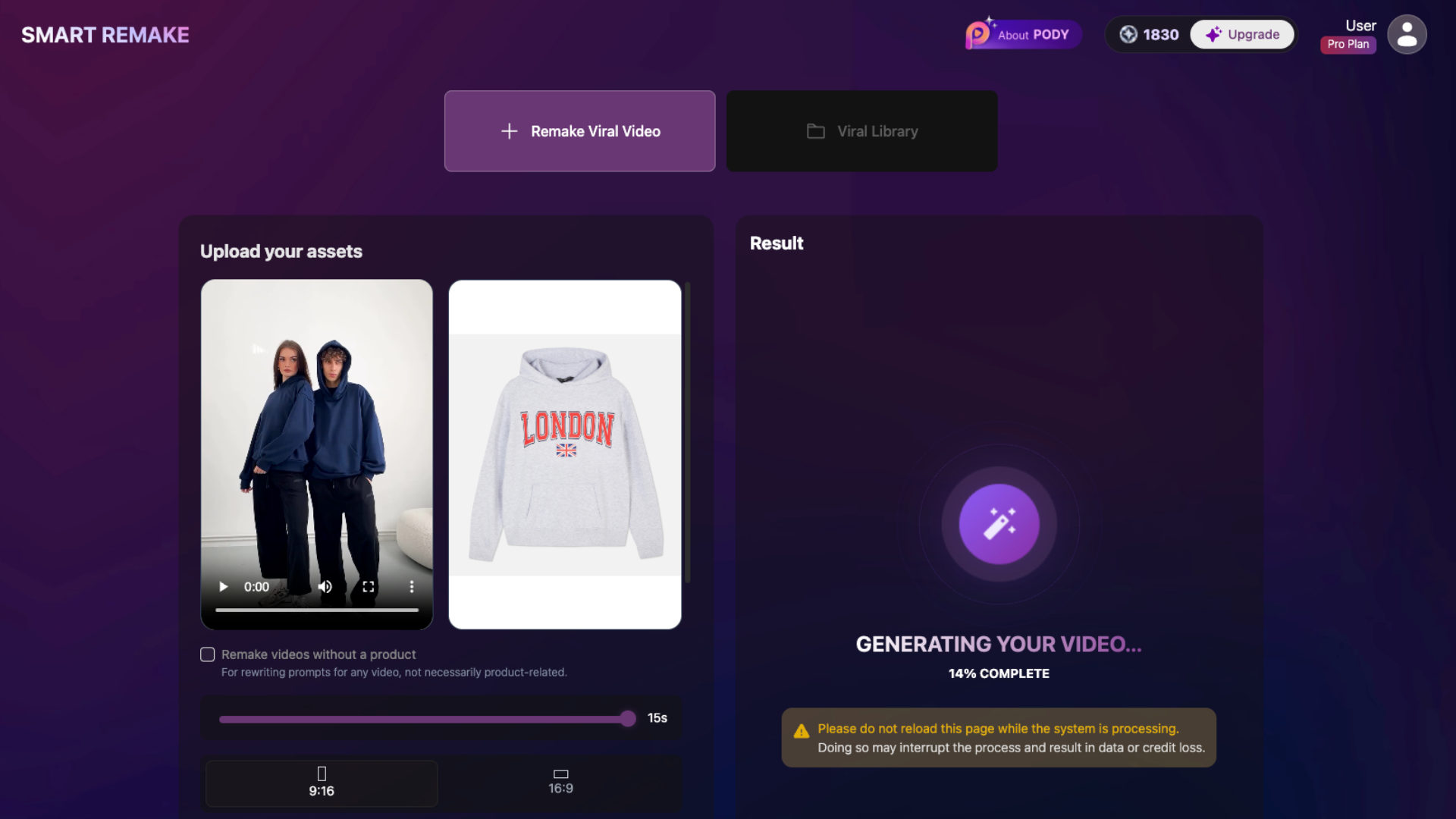
Generate Video (Maximum 280 credits): Generate the complete video output, including visuals, voiceover, subtitles, and effects based on your selected settings and assets.
Click Generate Video to start video generation.
Step 5: Access Your Result
Once complete, the result appears in the Result panel on the right side of the screen. You can preview the result directly in the browser.
a. View Results
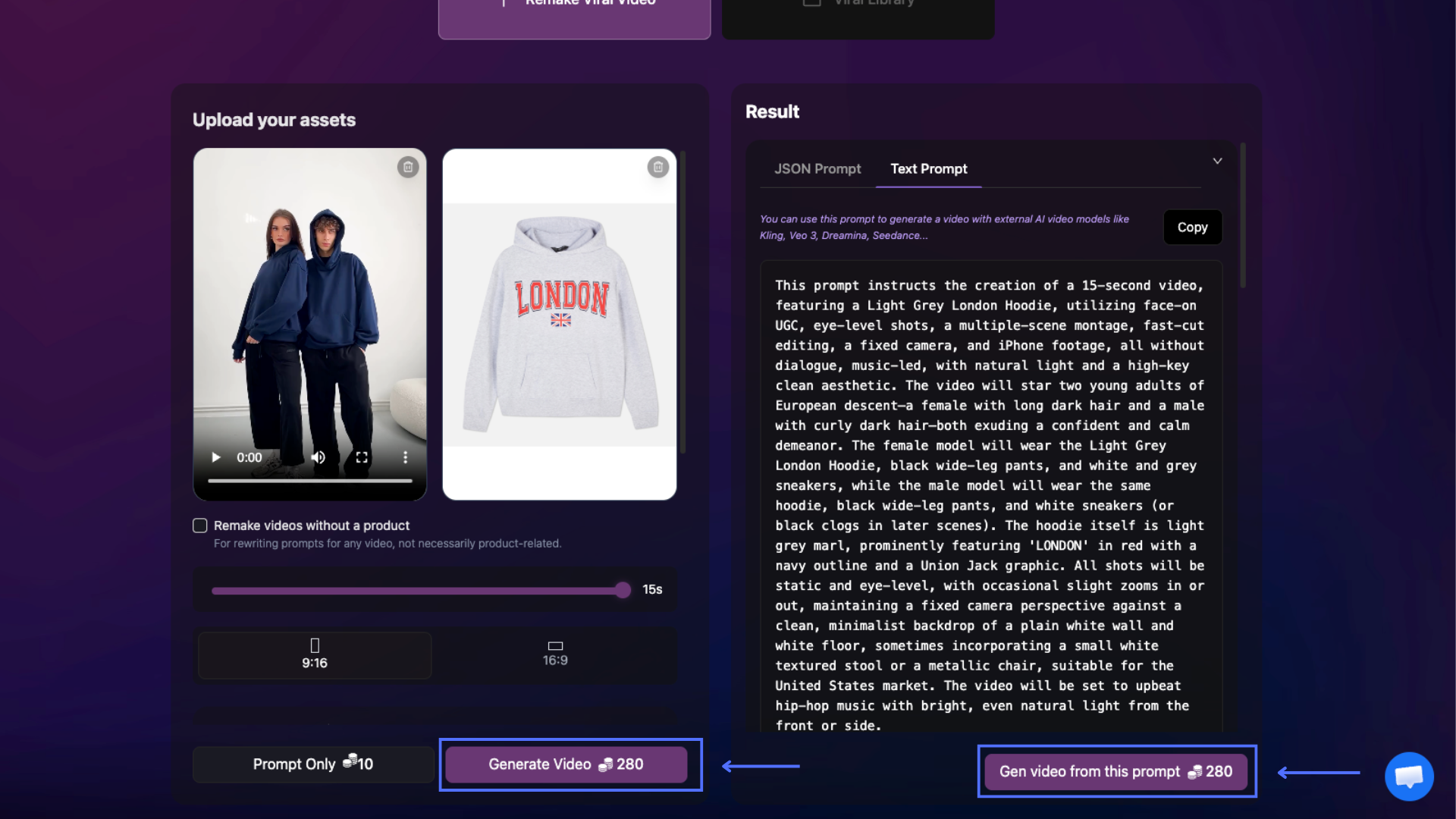
Prompt Only Result
If you selected Prompt Only, the system will generate a content prompt based on your settings and inputs. You can:
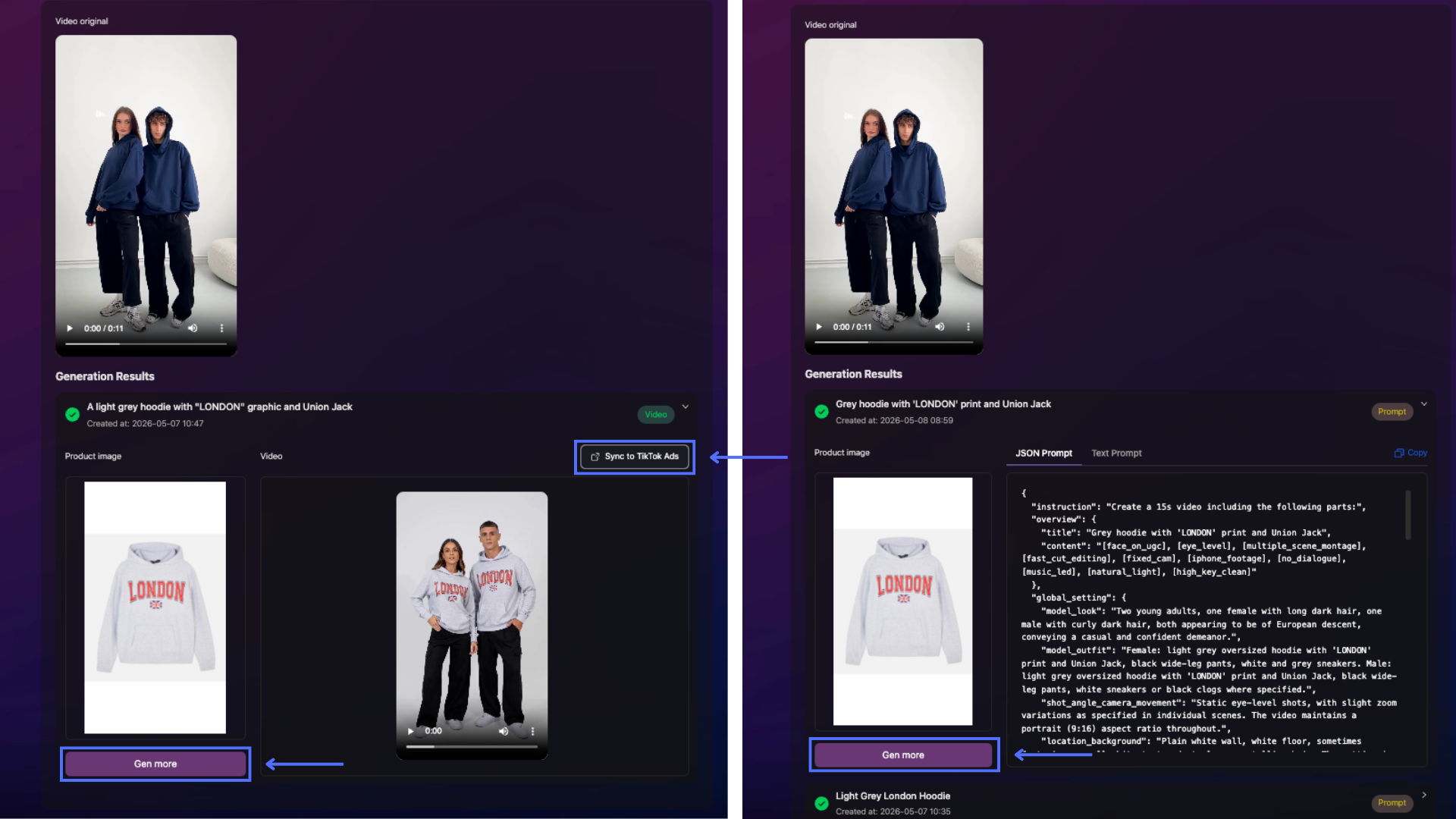
- Click Copy to copy the generated prompt. You can choose to copy either the JSON Prompt or Text Prompt format for use in other AI video platforms such as Kling, Veo 3, Hailuo, Wan, and more.
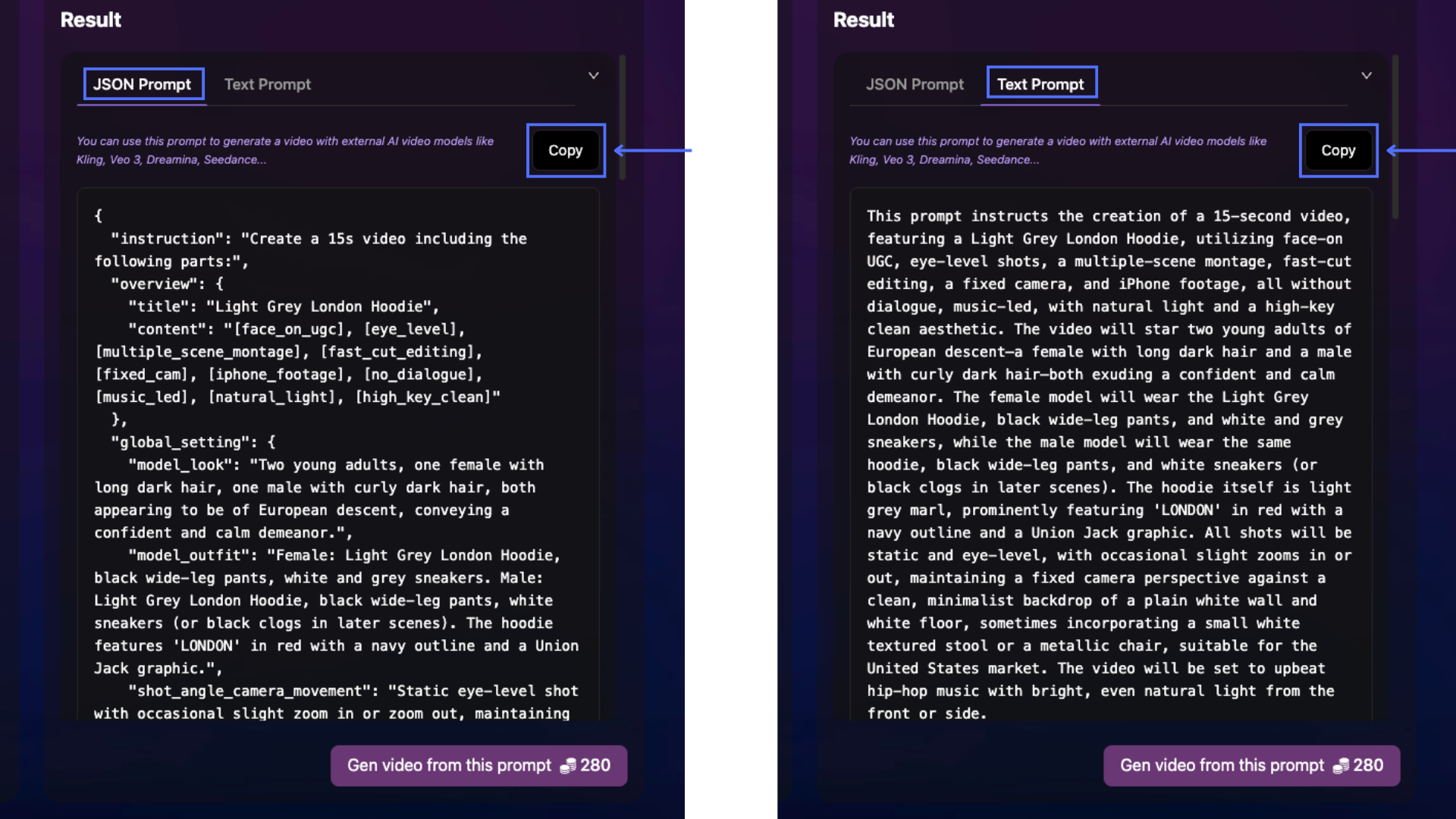
- Click Gen Video to generate a video while allowing you to adjust settings such as aspect ratio, duration, and Advanced Settings before generation.
- Click Gen Video from This Prompt to instantly generate a video using the exact same settings from the original Prompt Only request.
Generate Video Result
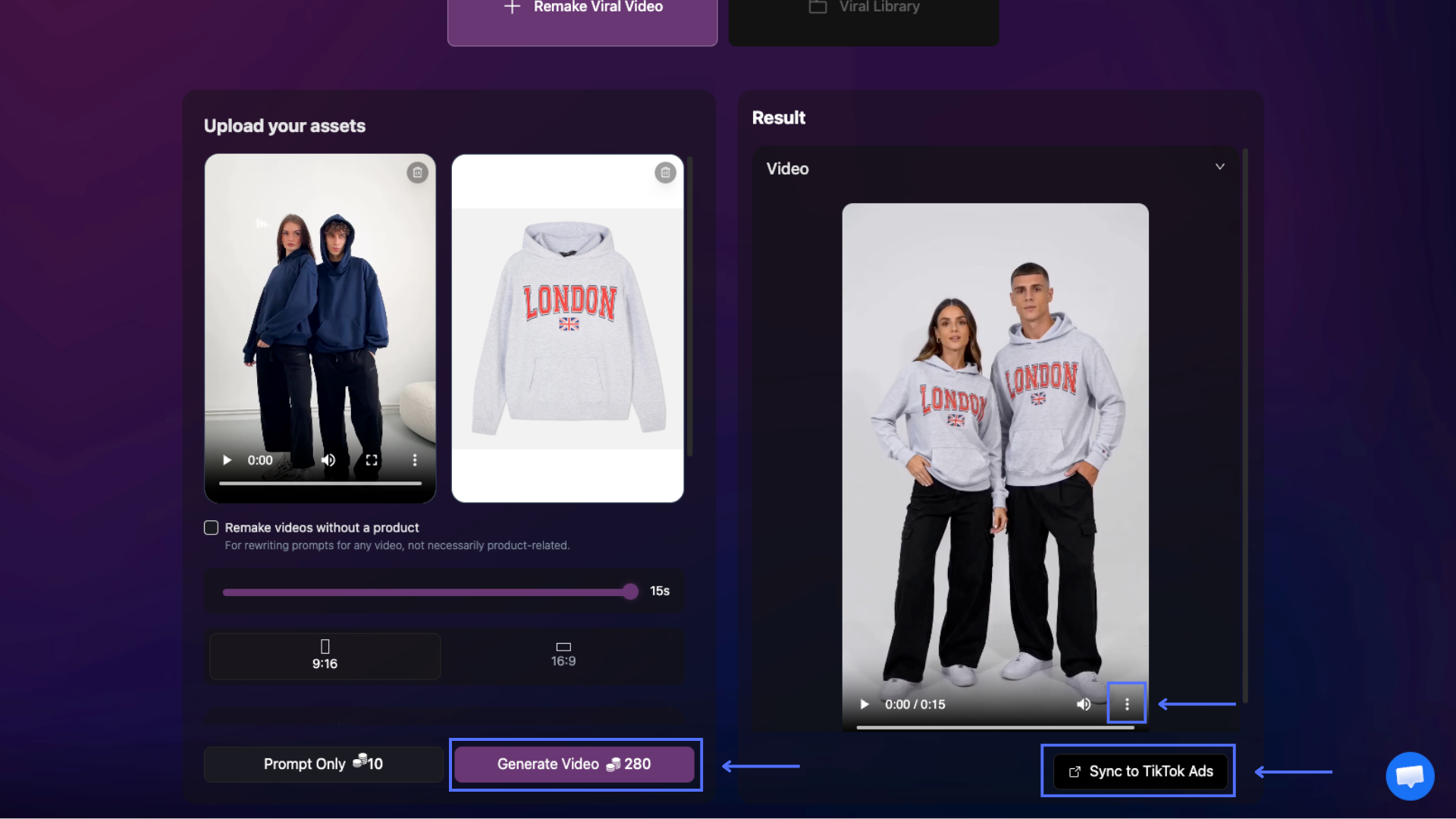
If you selected Generate Video, the system will return a fully generated video based on your settings and uploaded assets. You can:
- Download the video by clicking the three-dot menu at the bottom-right corner of the video, then selecting Download.
- Sync the video directly to TikTok Ads by clicking Sync to TikTok Ads.
- Click Generate Video if you want to continue generating a new video variation.
Result
Reference video
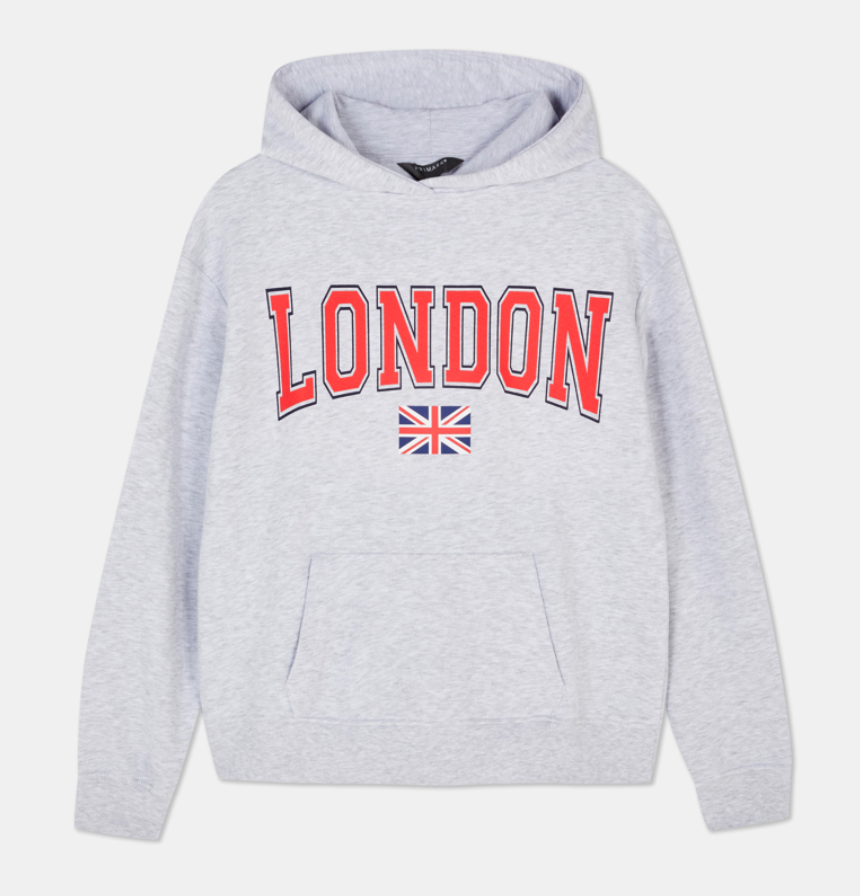
Product photos (do not use photos with real people)
Remake without Advanced Setting
Remake with Advanced Setting
b. Access Previous Results
All generated prompts and videos can be found in the Project section (https://app.pody.ai/projects) under the Remake Videos tab.
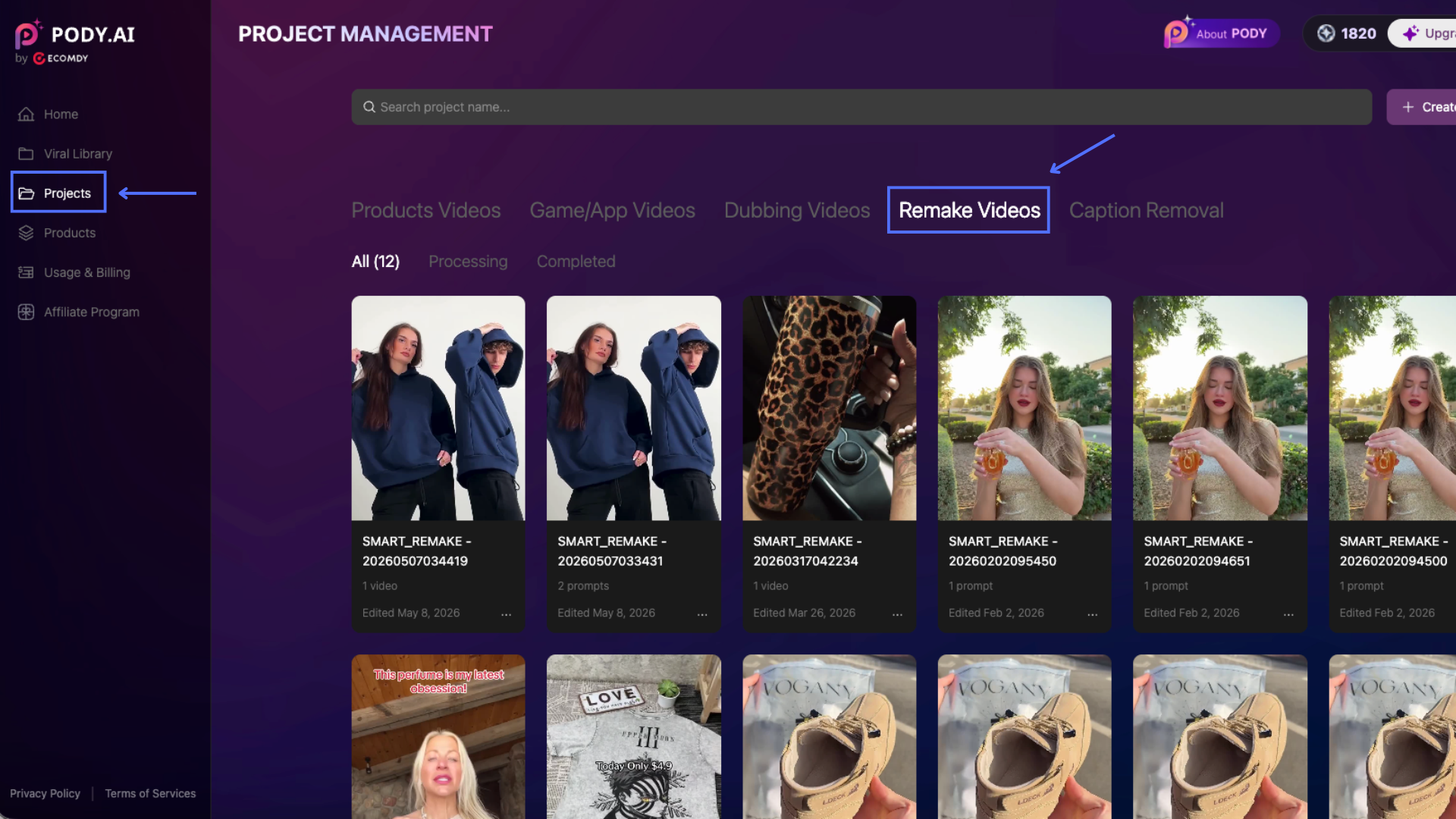
When reviewing previous results, you can:
-
Click Gen More (available for both prompts and generated videos) to continue creating new remake variations using the same assets.
You will be redirected to the Smart Remake setup screen with the previously uploaded reference video and product image automatically filled in. You can replace the product image, upload a new reference video, or adjust other settings before generating again.
-
Click Sync to TikTok Ads (for generated videos) to sync the video directly to your connected TikTok Ads accounts.
2. Viral Library
To access the Viral Library, click Viral Library from the left sidebar, or open Smart Remake and select the Viral Library tab.
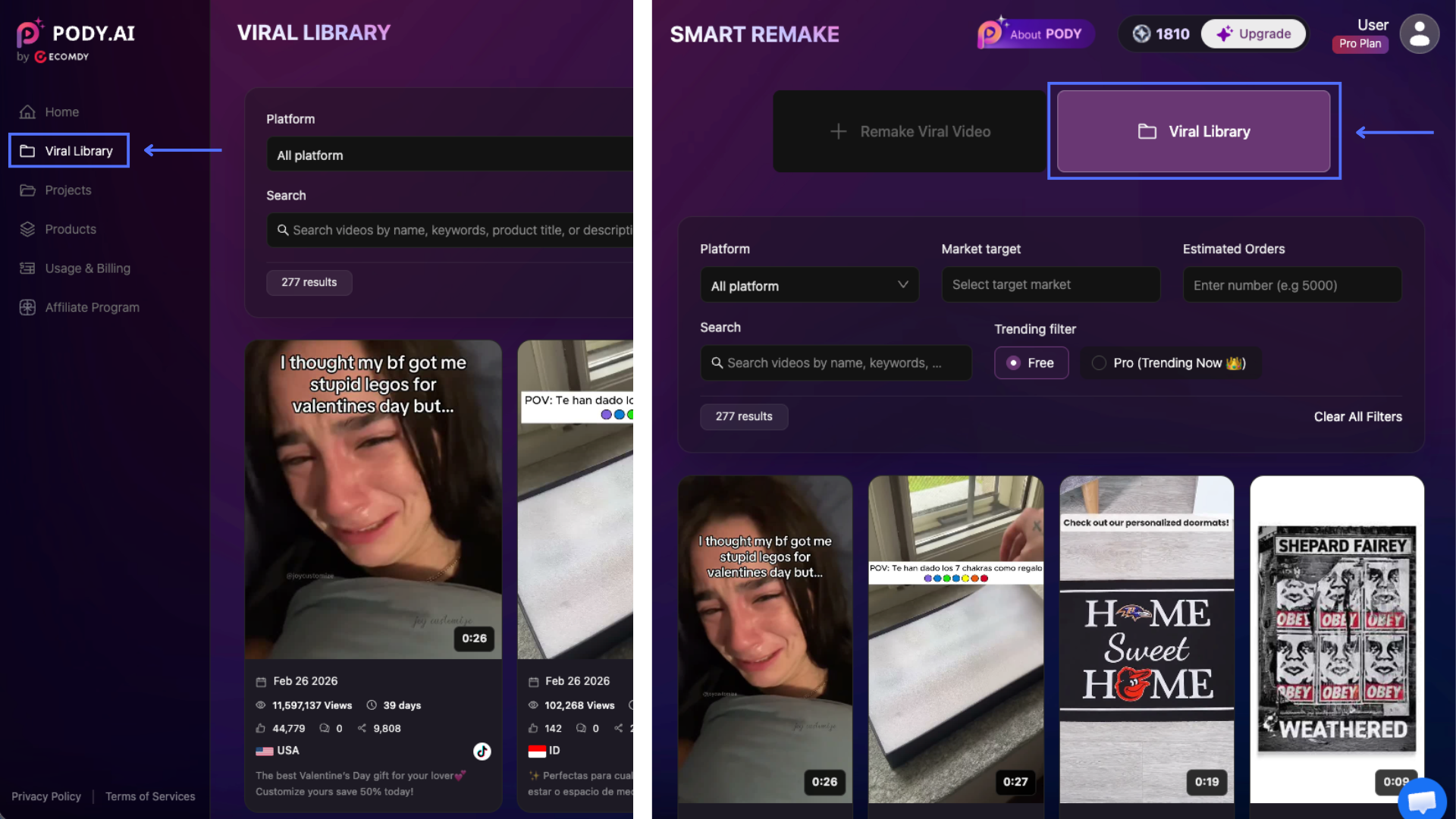
The Viral Library provides a collection of trending and high-performing viral videos that can be used as references for Smart Remake.
You can:
- Filter videos using options such as Platform, Market Target, Estimated Orders, keywords, and Trending filters.
- Hover over a video thumbnail to preview the video automatically.
- Click on a video to view detailed performance metrics and insights.
To remake a video:
- Click Smart Remake on the selected video.
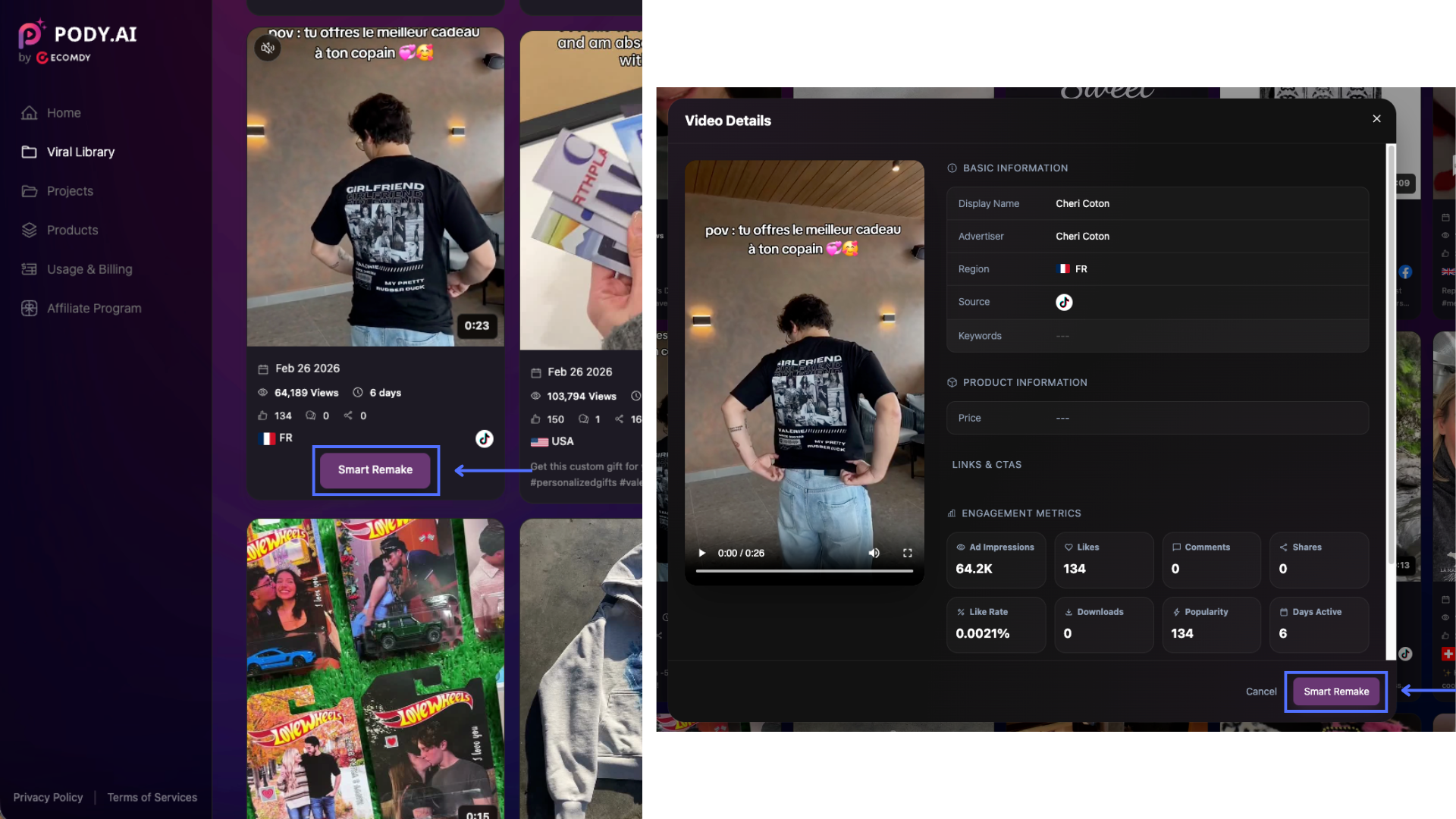
- The system will redirect you to the Remake Viral Video screen with the selected video automatically filled into the Reference Video section.
- Continue with the remaining setup and generation steps as described in the Remake Viral Video guide above.
3. Best Practices & Avoid
Reference Video
- Use high-quality reference videos with clear visuals, storytelling, and stable pacing for better remake results.
- Keep your reference video under 20 seconds to reduce the risk of losing ending scenes or important content during AI processing.
- Choose viral or high-performing videos that closely match your target content style, audience, or platform.
- For more natural results, use a reference video and product image that belong to the same category or have a similar shape/form factor.
Example: If the reference video features a scented candle jar, ideal replacements include:
- ✅ Another scented candle jar
- ✅ A drinking glass or insulated tumbler
- ✅ A skincare jar, gift box, or other cylindrical/round products
Avoid replacing with products that have completely different structures, such as:
- ❌ Watches
- ❌ Shoes
- ❌ Flat or irregular-shaped products
Large differences in shape may lead to unnatural remake results.
Product Image
- Upload clear, high-resolution product images (recommended: minimum 1080px).
- Use product images with good lighting and minimal background distractions.
- A white or solid-color background is recommended to help the AI isolate the product more accurately.
- Do not include real human faces in the product image, as character appearance will be generated based on your Model Look settings.
- Capture the product from a straight-on angle with balanced lighting and minimal shadows.
Content & Output Quality
- Provide detailed product descriptions, including product name, key features, target audience, and main benefits to improve generation accuracy.
- Use Prompt Only first to preview concepts and optimize prompts before generating full videos.
- Test multiple variations by changing hooks, products, visuals, Model Look, duration, or settings to discover higher-performing creatives.
- Prioritize the 9:16 portrait format for TikTok, Reels, and short-form content, as it typically delivers better reach and engagement.
- Try different storytelling styles and viral hooks to improve creative performance and testing efficiency.
Avoid
- Uploading blurry, low-quality, heavily edited, or unstable reference videos.
- Using videos with extremely fast cuts or unclear storytelling structures, which may reduce remake quality.
- Using product images with cluttered backgrounds, low resolution, or inconsistent lighting.
- Using product images that are completely unrelated in shape or category to the reference video.
- Providing vague product descriptions or incomplete settings.
- Expecting identical recreations of the original reference video.
- Uploading copyrighted, restricted, or unauthorized content without proper usage rights.