Translate & Dub
Translate & Dub enables automatic video translation and dubbing into multiple languages with natural AI voice and lip-sync synchronization, helping businesses scale content globally.
Supported languages include Japanese, Korean, Spanish, French, Portuguese, English, German, Indonesian, Italian, Turkish, Thai, Vietnamese, and Arabic, allowing videos to be localized quickly for international markets.
To get started, log in to your Pody.ai account at https://app.pody.ai/login and access the Translate & Dub feature directly from the dashboard.
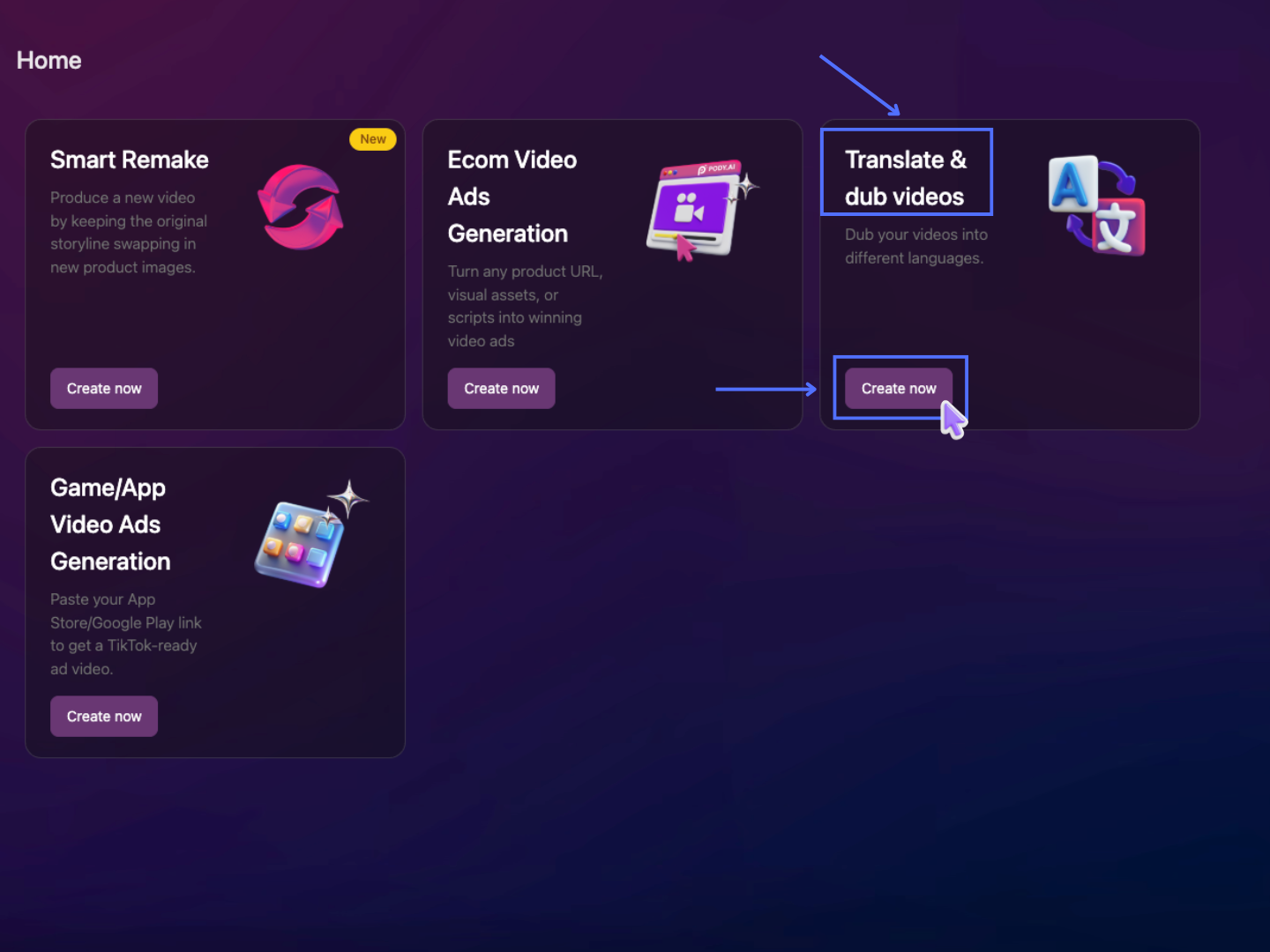
Or access the feature directly via: https://app.pody.ai/creatives/dubbing
Best Practices & Avoid for Translate & Dub
- Use a high-resolution video for better dubbing quality
- Ensure the speaker’s face is clearly visible
- Record in a well-lit environment
- Keep one main speaker facing the camera
- Use videos with clear and stable audio
- Mouth being covered or partially hidden
- Multiple people speaking at the same time
- Continuous talking without pauses
- Loud background noise or music overpowering speech
- Strong shadows on or around the speaker’s face
Translate & Dub Guidelines
Step 1: Upload Video
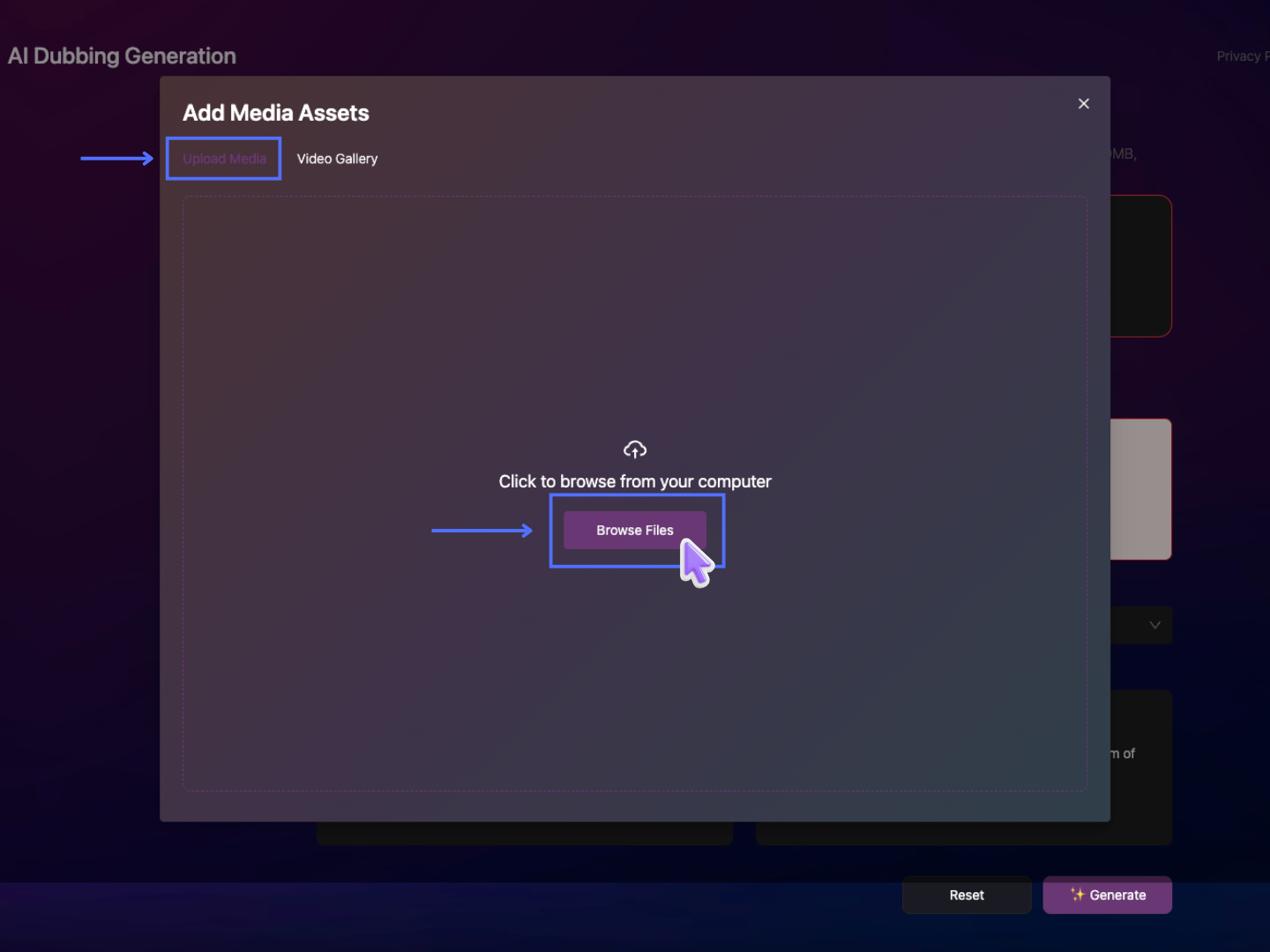
Click Upload to open the media upload popup.
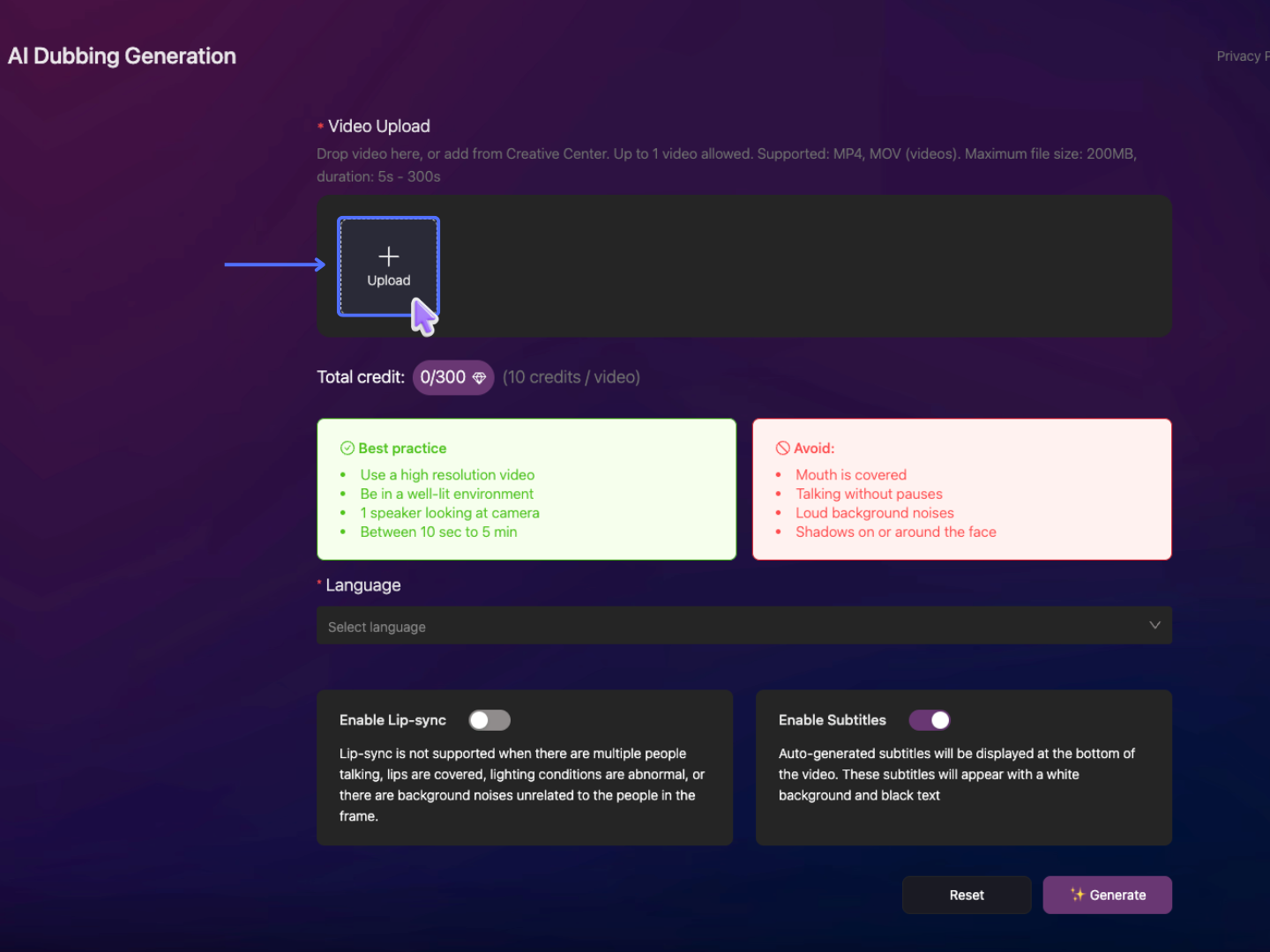
In the popup window:
Select the Upload Media tab, then click Browse Files to choose a video file from your computer.
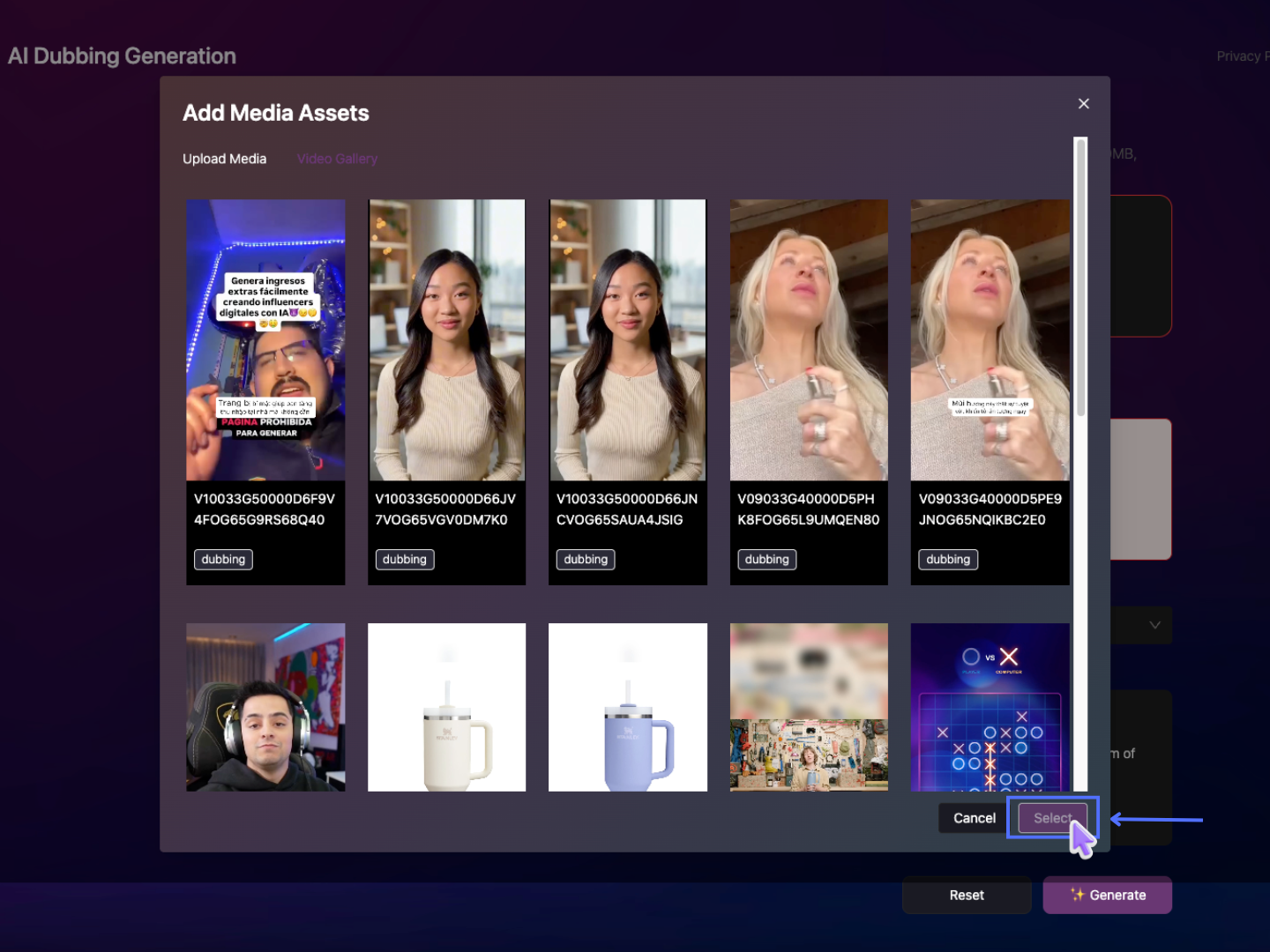
The Video Gallery tab displays videos that have already been generated and stored within your current Project, allowing you to select an existing project video for processing.
Upload your video with the following requirements:
-
Supported formats: MP4, MOV
-
Duration: 5–300 seconds
-
Maximum file size: 200MB
-
Supported aspect ratios: 16:9, 9:16, 1:1
Step 2: Select Language
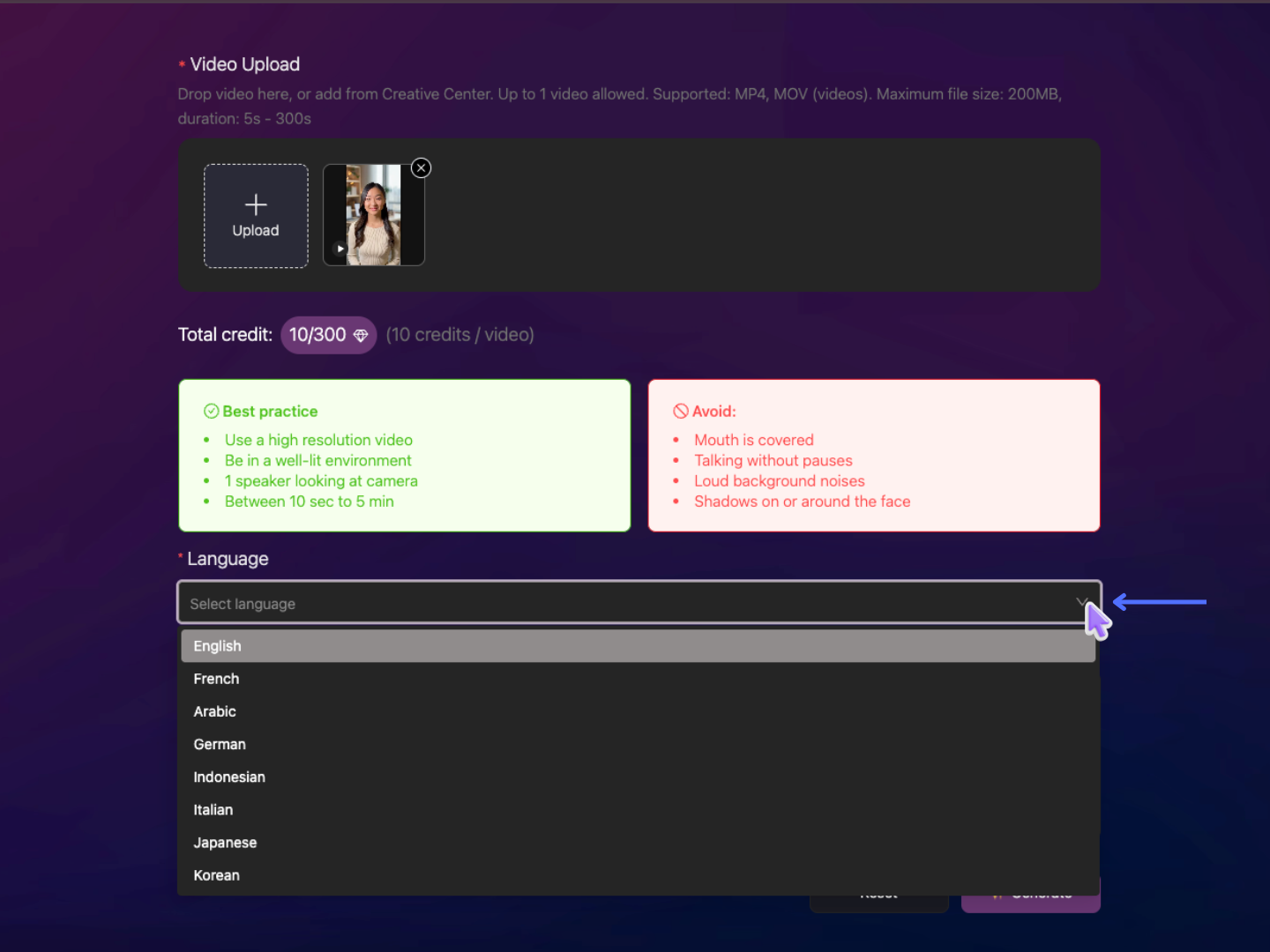
Choose the target language you want to translate and dub your video into.
Step 3: Configure Settings
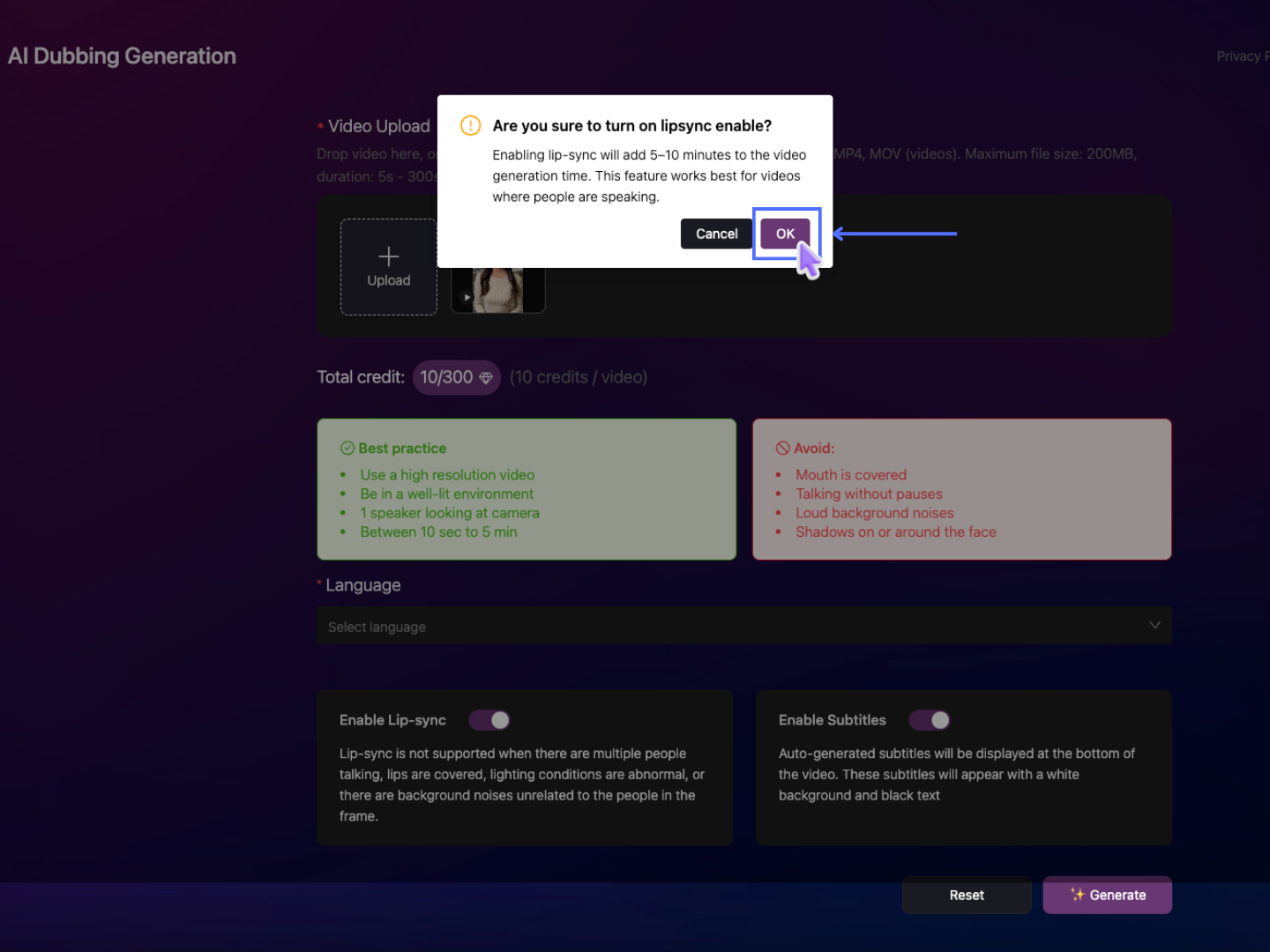
- Enable Lip-sync (Optional): Synchronizes AI voice with mouth movements.
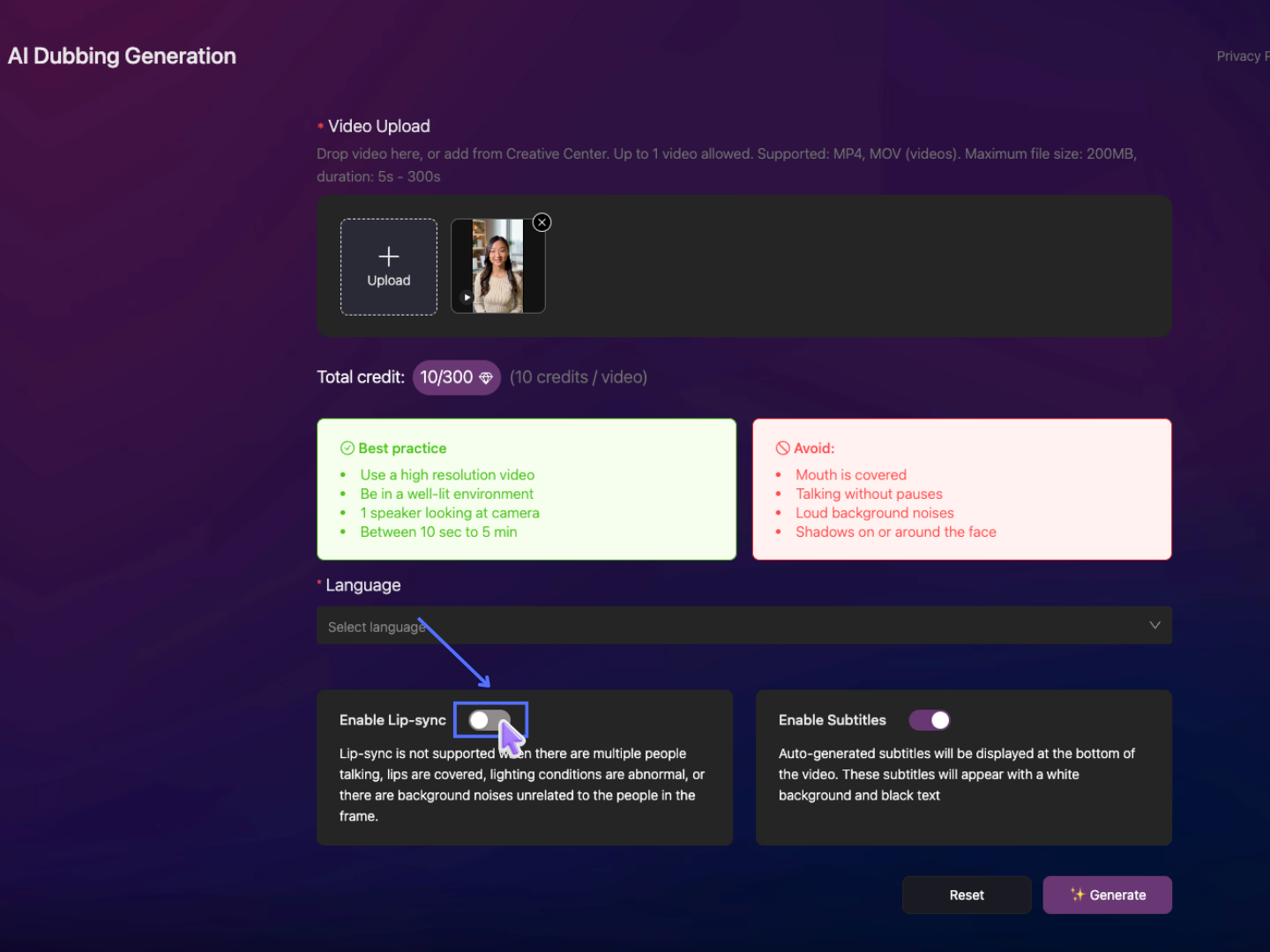
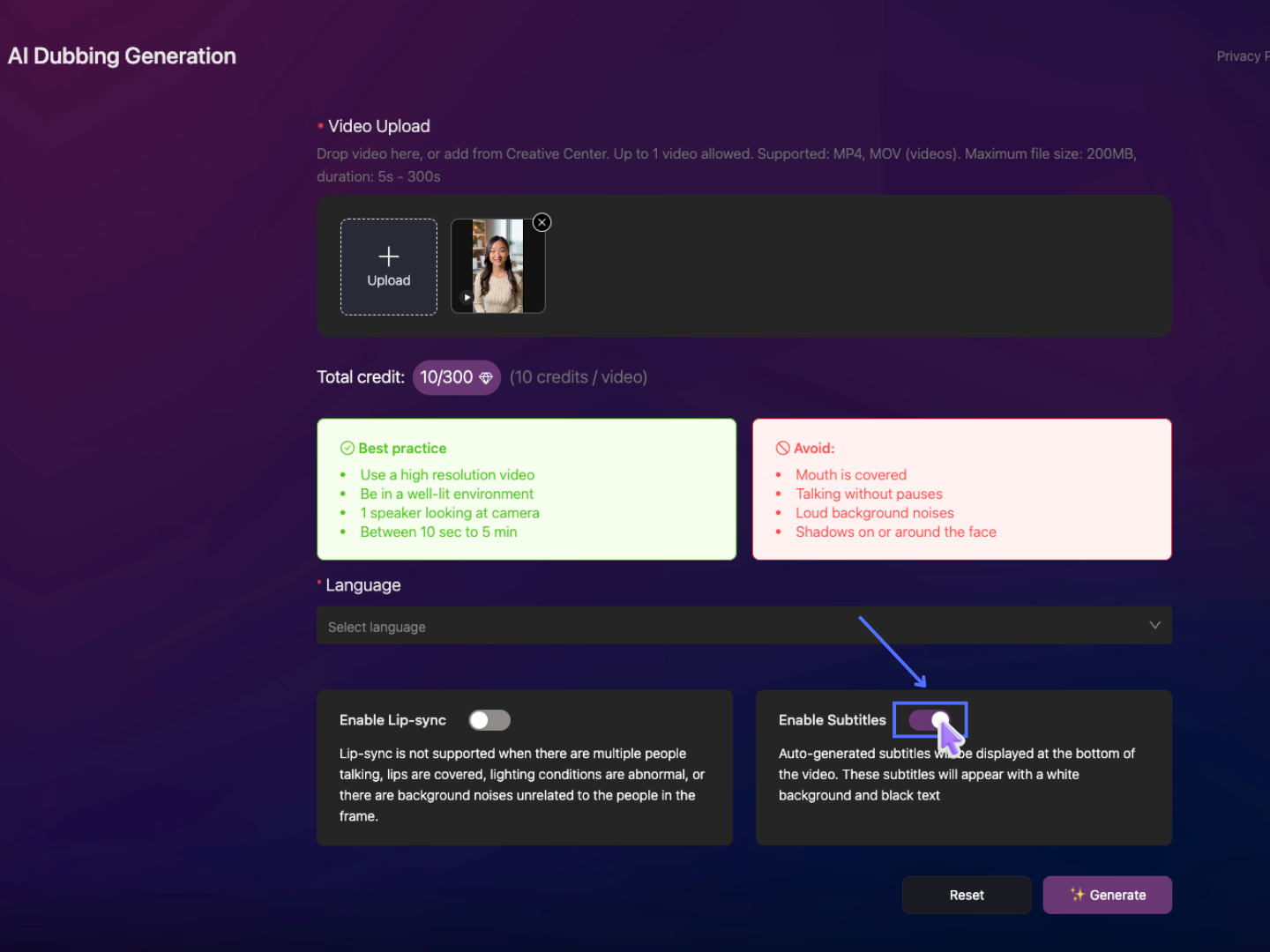
- Enable Subtitles (Optional): Automatically generates subtitles displayed at the bottom of the video.
Step 4: Generate Video
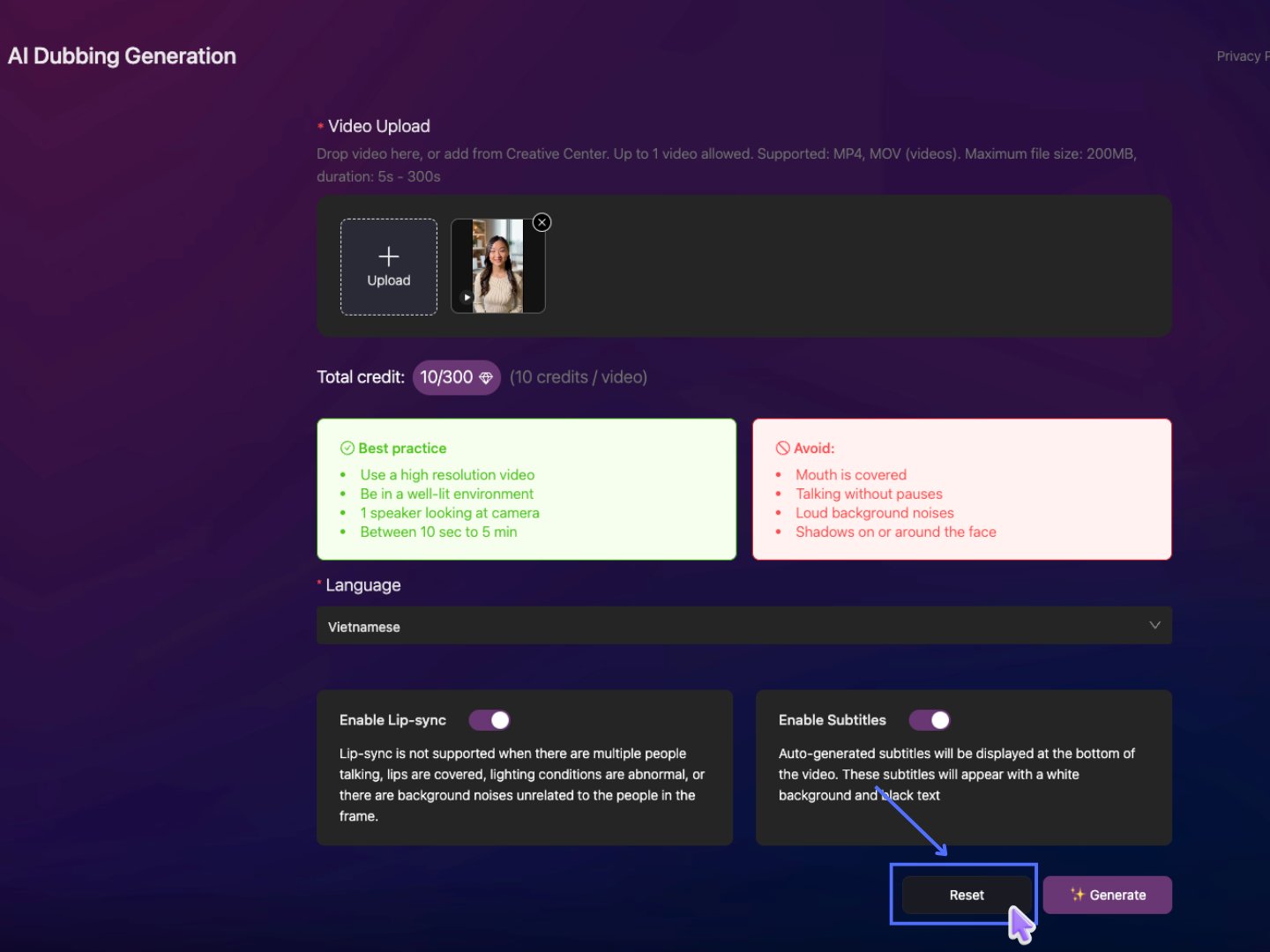
Click Reset to clear all settings and restart the setup process from the beginning.
Click Generate to start the dubbing process.
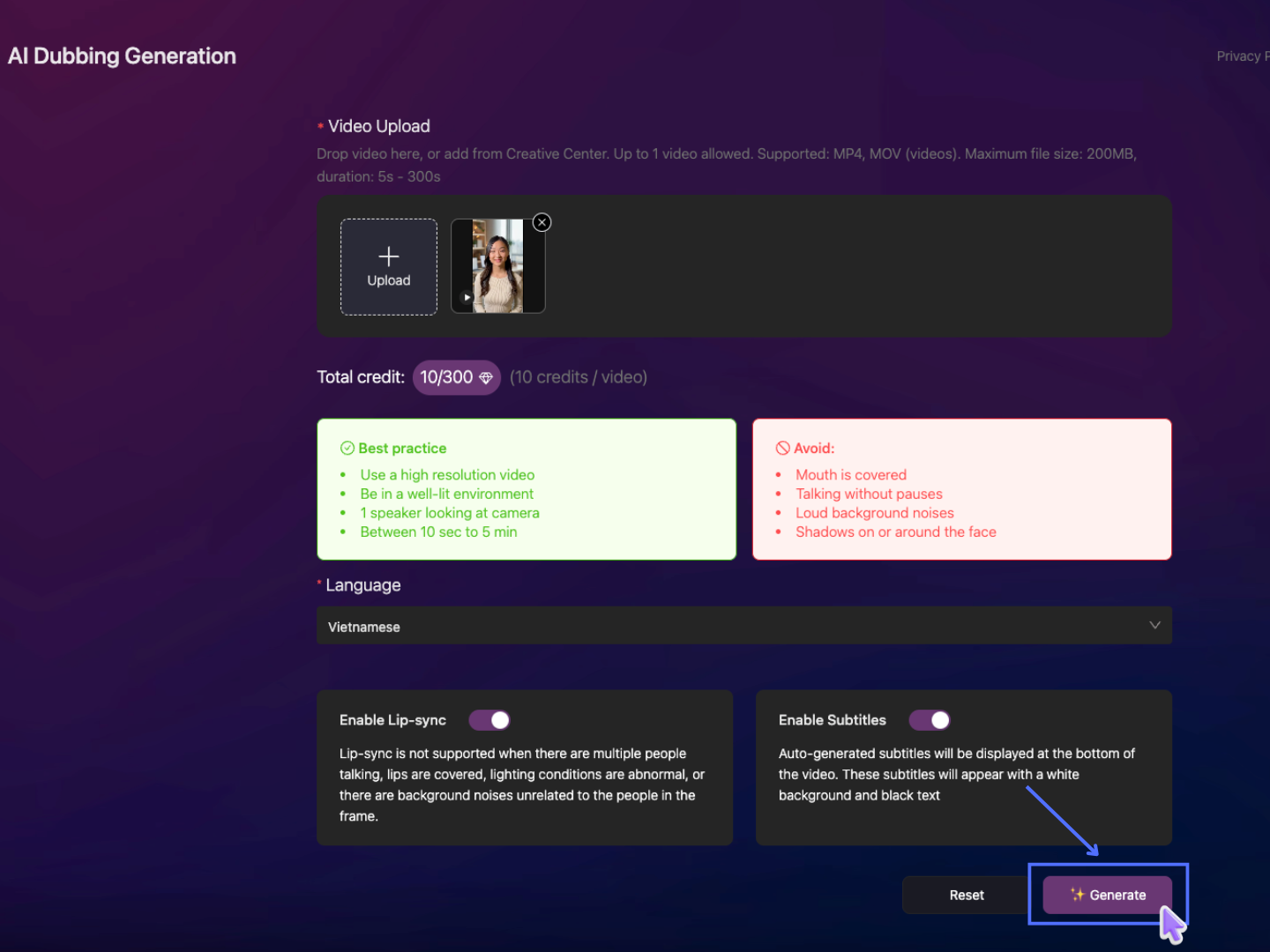
AI will automatically translate speech, generate voiceover, and create the localized video.
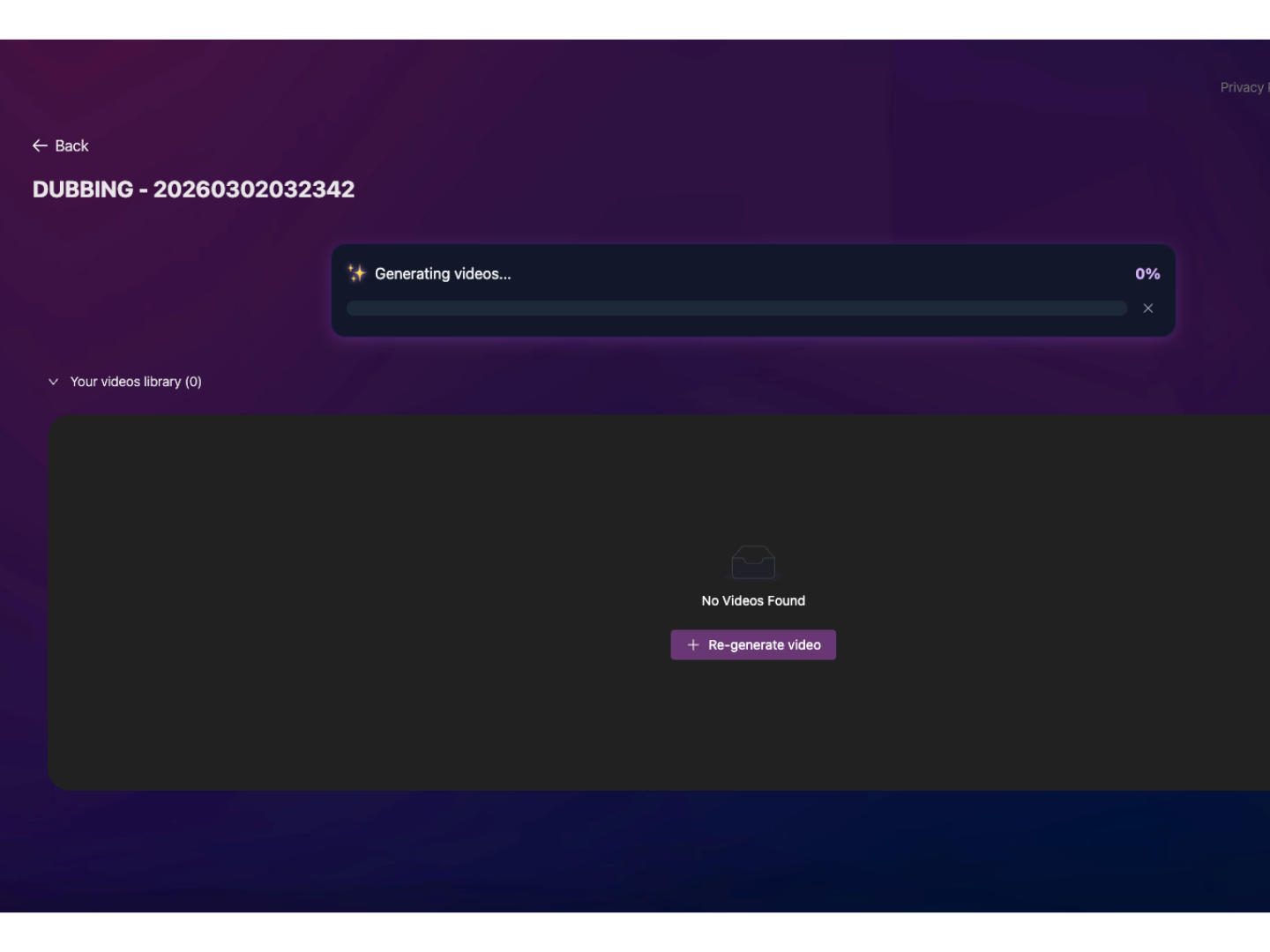
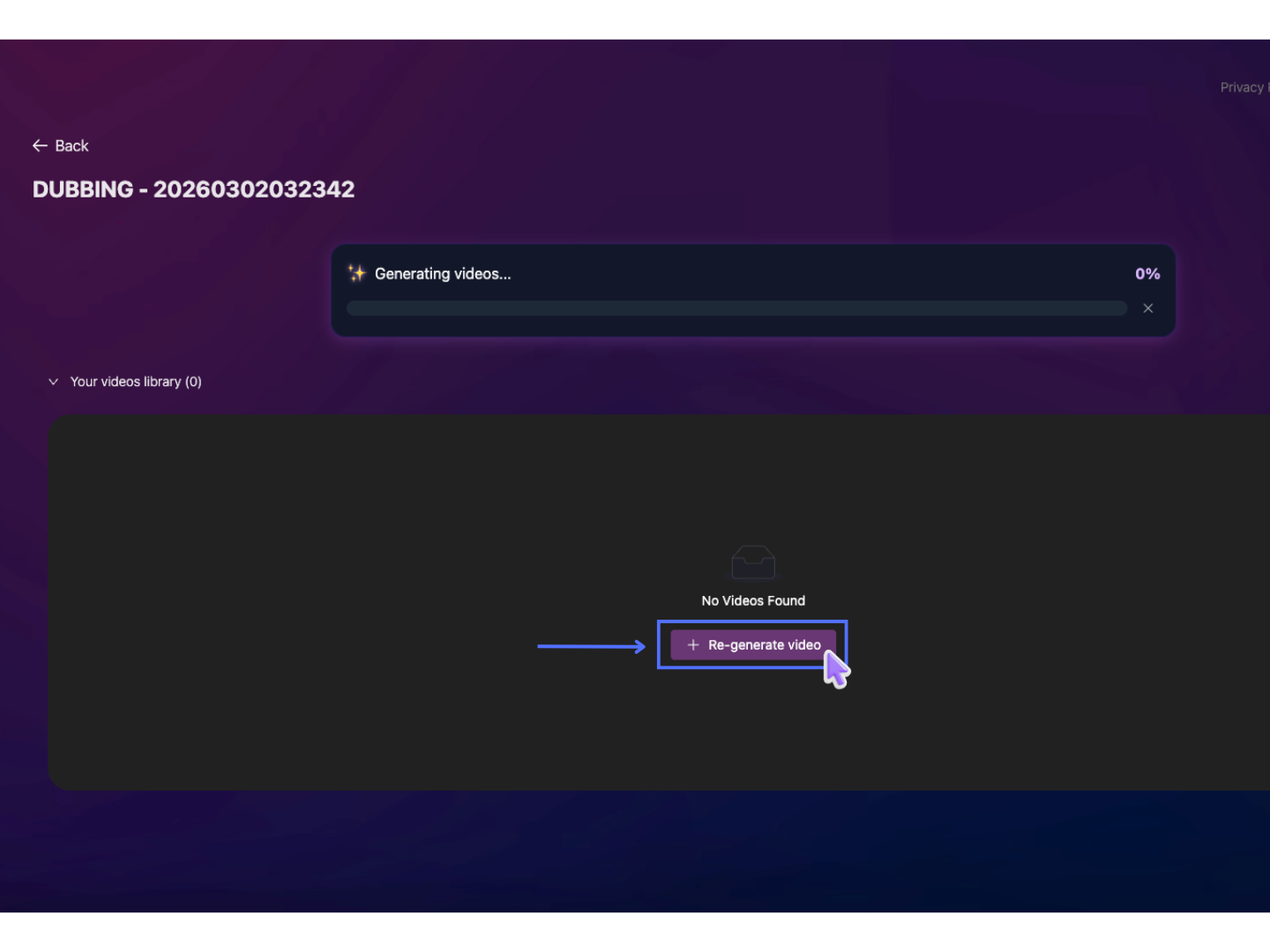
During the video generation process, click Re-generate video if you want to create another video using the same initial settings.
Result Demo
Reference Video
Dubbed in Vietnamese
Dubbed in French
Step 5: Access Your Result
Once the video generation is completed, the result screen will appear as shown above.
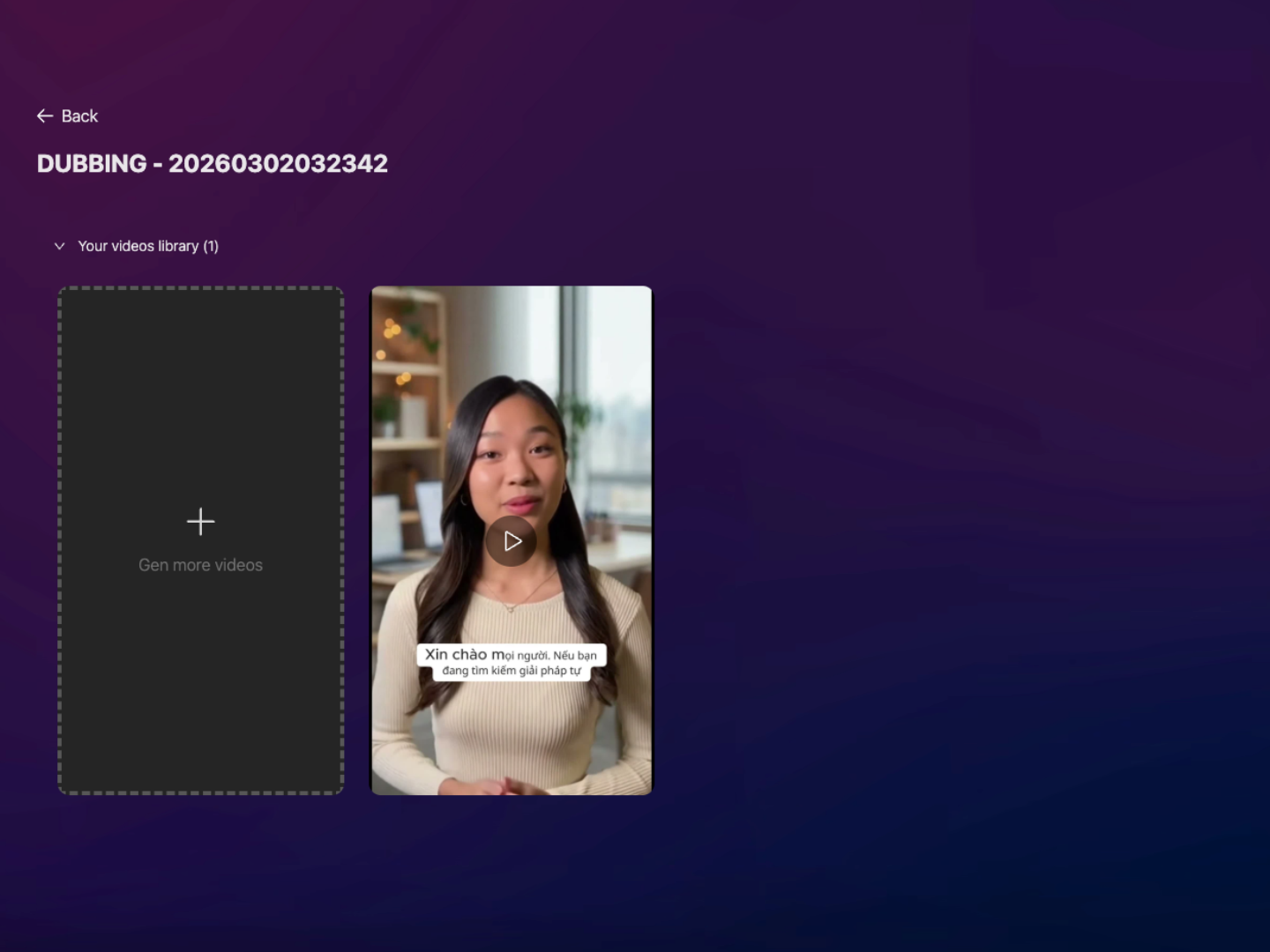
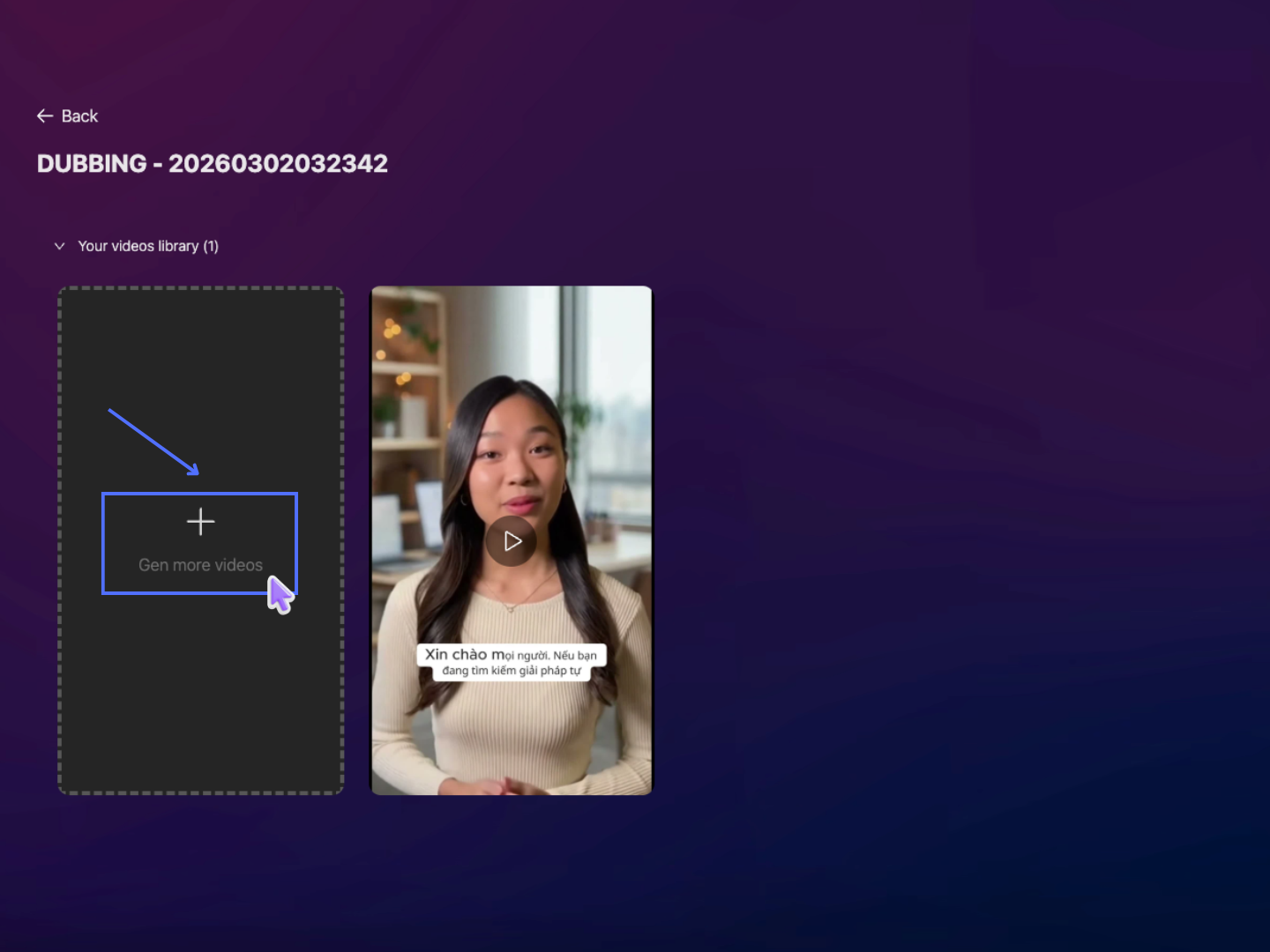
Click Gen more videos if you want to generate another video using the same initial settings.
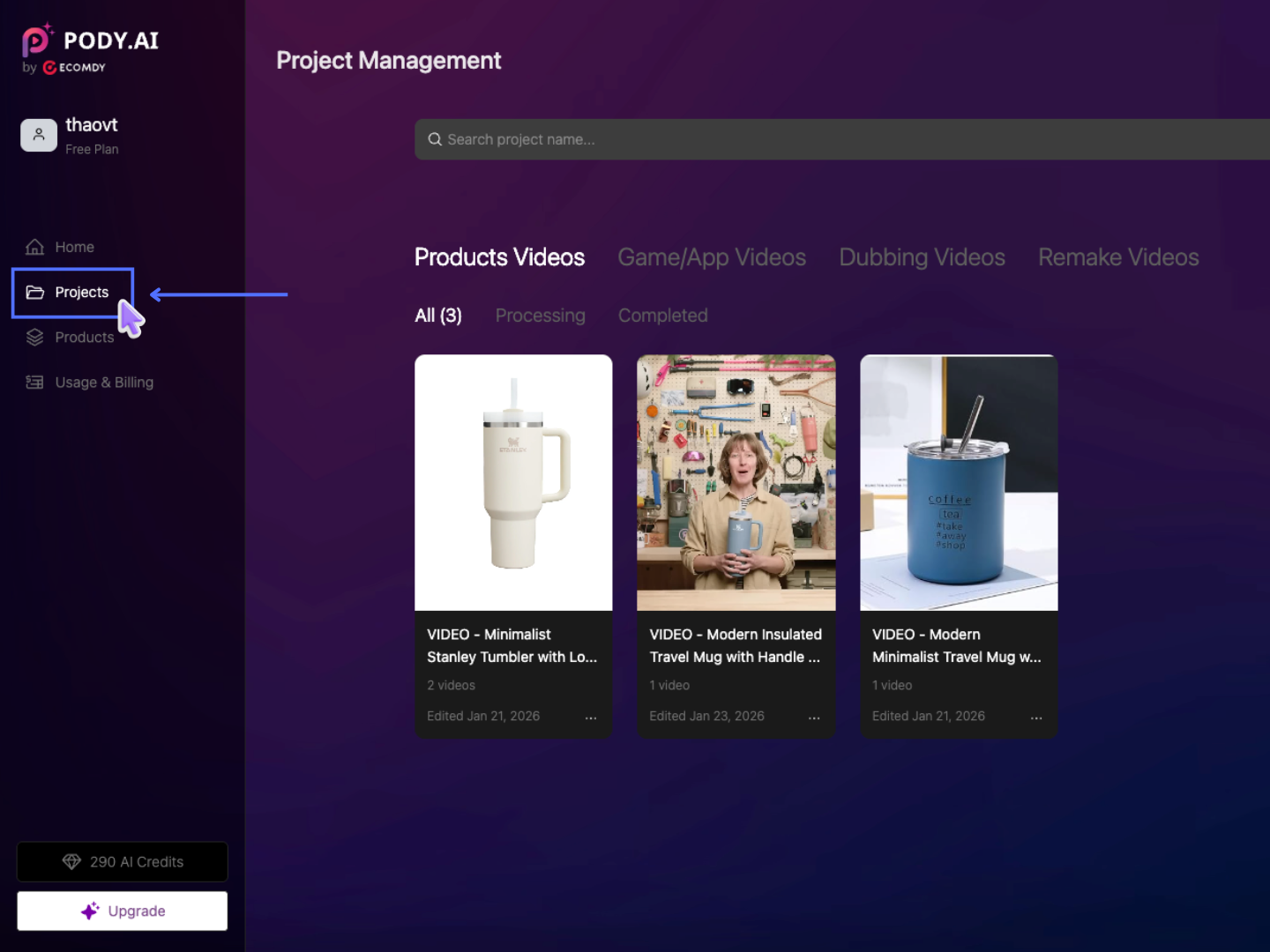
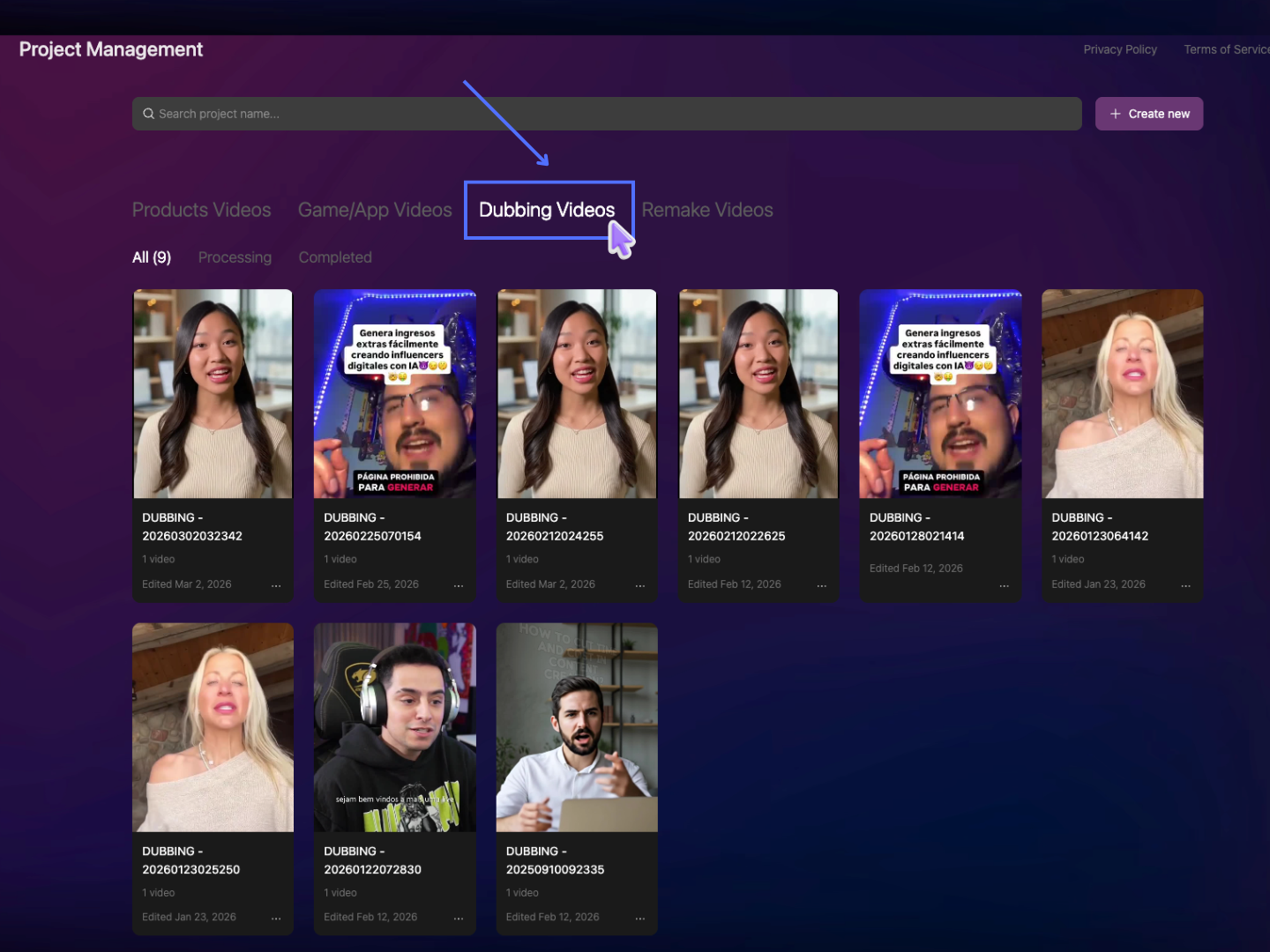
All generated videos can be found in the Project section (https://app.pody.ai/projects) under the Dubbing Video tab.